
As an admin, you control the starting layout of the Home dashboard for everyone at your site. You can choose which modules appear, set the column layout, and decide whether users can adjust their own view or everyone sees the same thing.
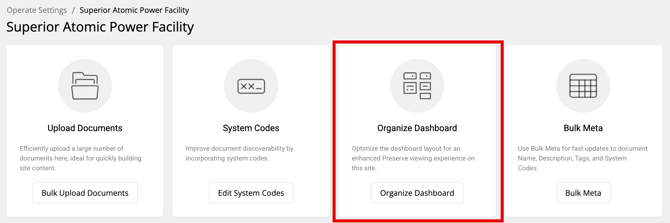
Before you begin- Click the gear icon below the Operate navigation bar — this opens Operate Settings (separate from your account menu)
- Click the Site tab and select the site you want to configure
- Click Organize Dashboard
Site dashboard layout
At the top of the page you'll see the Site dashboard layout section with two settings:
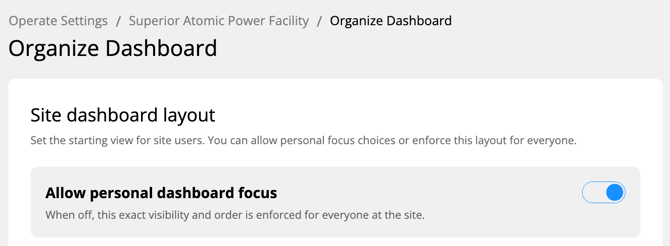
Allow personal dashboard focus
This toggle controls whether users at the site can customize their own Home dashboard view.
- On (default) — users can personalize which modules they see and in what order, starting from your site default
- Off — your exact layout is enforced for everyone at the site; users cannot make personal changes
💡 When this is off, the description reads: "When off, this exact visibility and order is enforced for everyone at the site."
Module columns
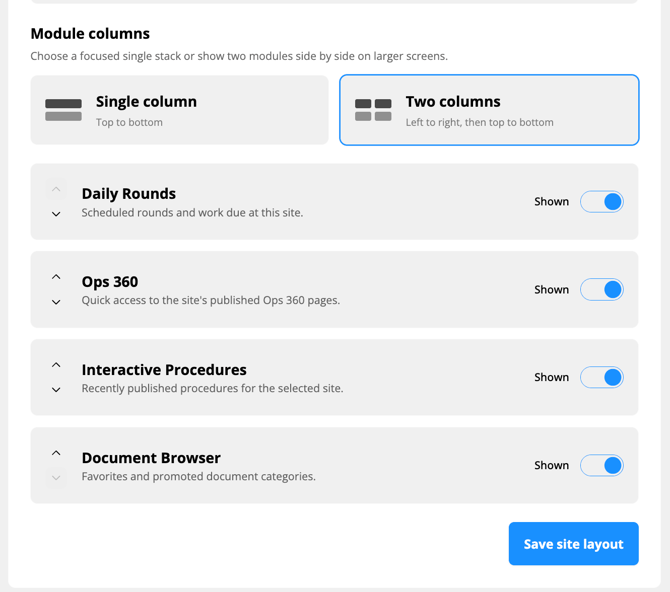
Choose how modules are arranged on the Home dashboard:
- Single column — modules stack top to bottom
- Two columns — modules display left to right, then top to bottom on larger screens
Below the layout options, you'll see a list of the four dashboard modules. For each one you can:
- Show or hide — use the toggle on the right to show or hide that module for everyone at the site
- Reorder — use the up and down arrows on the left to change the order modules appear on the dashboard
The four modules are:
| Module | What it shows |
|---|---|
| Rounds | Scheduled rounds and work due at this site |
| Ops 360 | Quick access to the site's published Ops 360 pages |
| Interactive Procedures | Recently published procedures for the selected site |
| Document Browser | Favorites and promoted document categories |
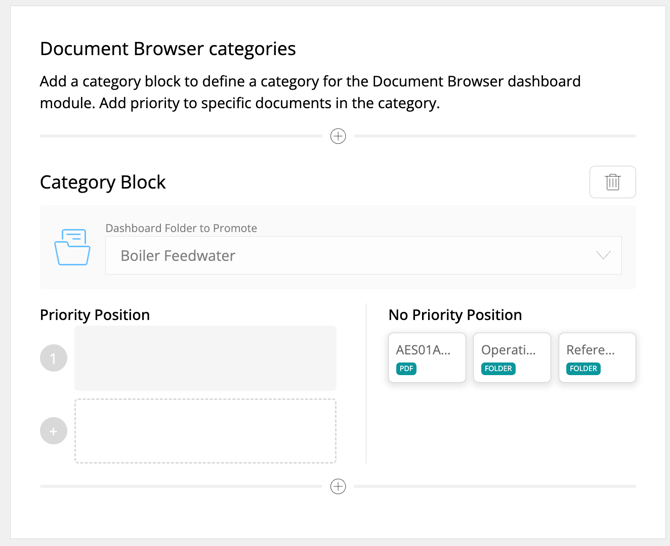
Document Browser categories (site-level)
Below the module list is a Document Browser categories section. This is where you promote specific folders and priority documents to appear in the Document Browser module on the Home dashboard — but only for this site. Click the + icon to add a category block, select a folder to promote, and add priority documents within it.
💡 There's also an org-level version. Operate Settings → Organization tab → Organize Dashboard lets you promote folders and documents into the Document Browser widget across all sites. The site-level section here only affects this specific site. See [Organizing the Document Browser Widget] for the org-level flow.
Save your layout
When you're done, click Save site layout. Your settings take effect immediately for all users at this site.
Related Articles