
The Document Browser module on the Home dashboard can surface the folders and documents your team uses most — so they're one tap away instead of buried in the full Document Browser. Here's how to set that up.
💡 This is different from the full dashboard layout settings. This page controls only the Document Browser widget on the Home dashboard. To control which modules appear on the Home dashboard, their order, or whether users can personalize their own view, see [Setting Up the Site Dashboard Layout].
Before you begin: Getting to dashboard settings
Operate has its own dedicated settings, separate from your main organization settings.
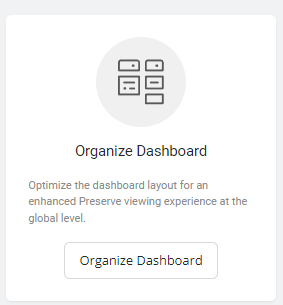
- Click the gear icon below the Operate navigation bar to open Operate Settings
- Click the Organization tab
- Click Organize Dashboard
This opens the org-level Document Browser dashboard configuration. Categories you add here appear in the Document Browser widget on the Home dashboard across all sites.
Step 1: Add a category block
On your dashboard configuration page, click the line break with the + icon — it turns blue on hover.
Step 2: Promote a folder to the dashboard
Select the folder you want to feature, then click Assign. This adds the folder as a category on the Home screen's Document Browser module. Every user at the site will see this category.
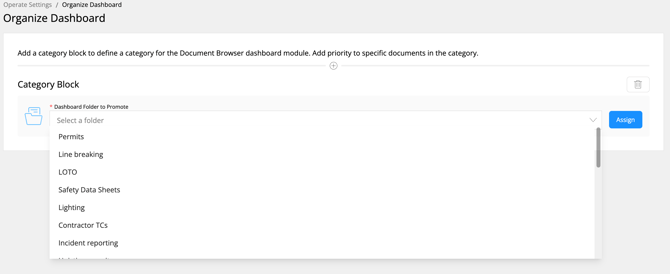
Step 3: Promote specific files within that folder
Within the promoted folder, you can choose individual files to surface directly on the dashboard.
💡 Keep it focused. We suggest limiting this to your most-used or highest-priority documents. Users can still access every folder through the full Document Browser — the dashboard isn't meant to replace it, just to surface what matters most day to day.
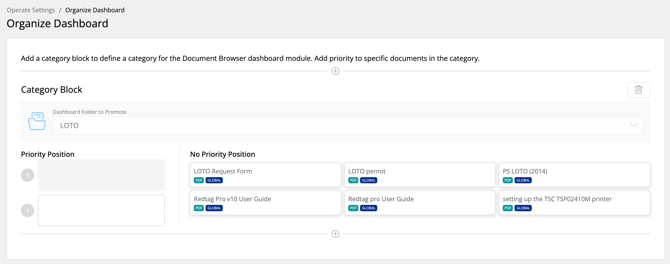
Step 4: Review your work
Click Home in the top navigation, beneath the Preserve logo, to see how your dashboard looks to users at this site.