
If your site allows personal dashboard customization, you can choose which modules appear on your Home screen and arrange them to match how you work.
💡 This option is only available when your site admin has allowed personal dashboard focus. If you don't see the customize option described below, your site admin has set a fixed layout for everyone at your site.
How to open dashboard customization
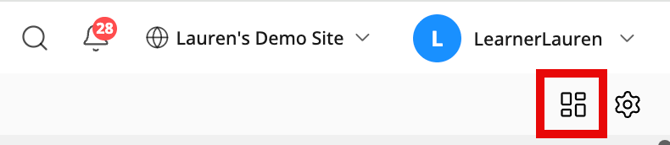
From the Home dashboard, look for the small gear icon in the top right corner of the page — separate from the Operate Settings gear icon in the navigation bar. Click it to open the Customize your dashboard focus page.
Module columns
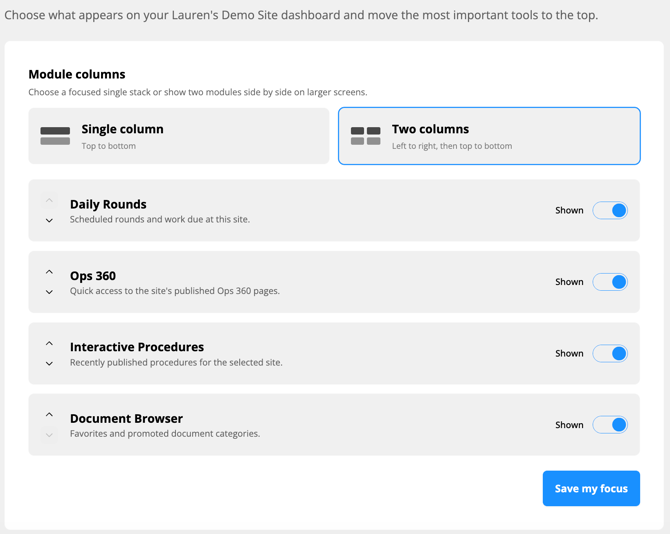
At the top of the page, choose how your modules are arranged:
- Single column — modules stack top to bottom
- Two columns — modules display left to right, then top to bottom on larger screens
Show or hide modules
Below the column picker, you'll see the four dashboard modules. Use the toggle on the right of each to show or hide it on your Home dashboard:
| Module | What it shows |
|---|---|
| Rounds | Scheduled rounds and work due at this site |
| Ops 360 | Quick access to the site's published Ops 360 pages |
| Interactive Procedures | Recently published procedures for the selected site |
| Document Browser | Favorites and promoted document categories |
Reorder modules
Use the up and down arrows on the left side of each module row to change the order they appear on your dashboard. Move the tools you use most to the top.
Save your changes
When you're happy with your layout, click Save my focus at the bottom of the page. Your Home dashboard will update immediately.
Related Articles