
As a technician, here's how to get started logging an Interactive Procedure.
Step 1: Start the Procedure
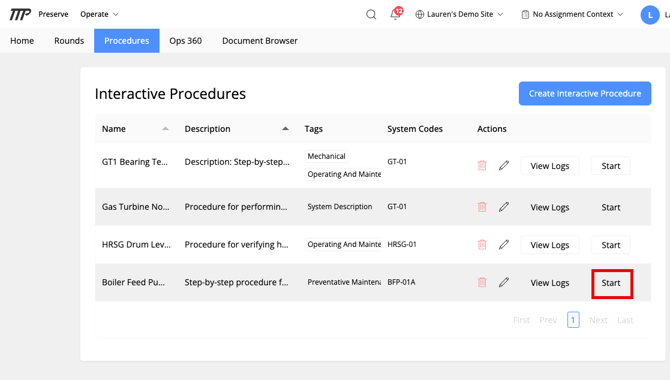
On the site navigation, click Procedures. Click Start on the procedure you need to complete.
This takes you to the technician view of the procedure — designed to work just as well on mobile as it does on desktop.
Step 2: Understand the layout
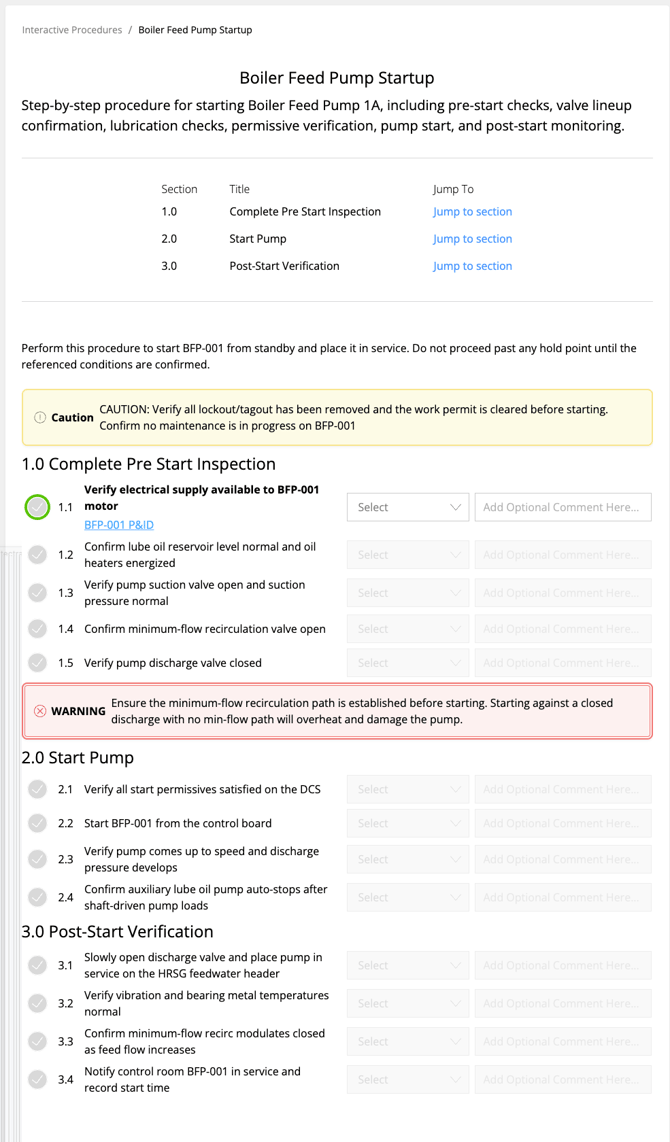
At the top of the page, you'll see the procedure's Name and Description, followed by a table of contents for easy navigation between sections before you dive in.
Below the table of contents is the procedure itself, broken into steps. Each step includes:
- A circle and check showing what's already been completed (check) and which step you're currently on (circle)
- A step number (e.g., "1.01")
- The step instruction itself (e.g., "Remove the cap from the gas can.")
- Any related links for that step, if the procedure author added them
- A status dropdown for the action you took
- A notes field, which gets logged with your submission (e.g., "I was able to remove the cap but the threads are worn down.")
💡 Some steps are sub-steps of the one above them rather than a new numbered step — this just reflects how the procedure was built, and doesn't change how you complete it.
Step 3: Work through each step
For each step, select the appropriate status:
- Completed — the step was performed as written
- Not Applicable — this step doesn't apply in this instance
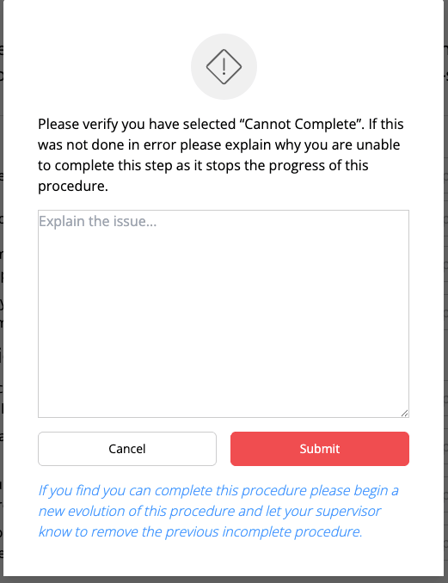
- Cannot Complete — you were unable to complete the step; add a note explaining why so your supervisor has context
Add any notes that are relevant, whether or not something went wrong — notes give the next person (or your supervisor) helpful context.
Step 4: Submit
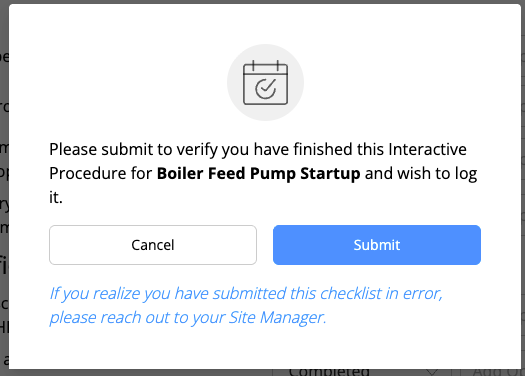
Once you've worked through the full procedure, you'll be prompted to Submit. This officially logs your completion of the Interactive Procedure.
Related Articles