
Operate navigation
The navigation bar runs across the top of every Operate page:
- Home: your dashboard
- Rounds: every round at your site
- Procedures: interactive procedures
- Ops 360: your site's custom pages
- Document Browser: all documents and folders
At the right end of the bar are two icons:
- Customize dashboard (grid icon): choose which sections appear on your Home dashboard and in what order, if your site allows it
- Operate Settings (gear icon): document uploads, system codes, dashboard layout, Bulk Meta, and tags. Only Operate Admins can use these settings.
💡 Home shows the site selected in the top bar. If you work at more than one site, switch sites there. If you have assignments, the assignment selector in the top bar focuses Home on the rounds and procedures for your role.

The Home dashboard
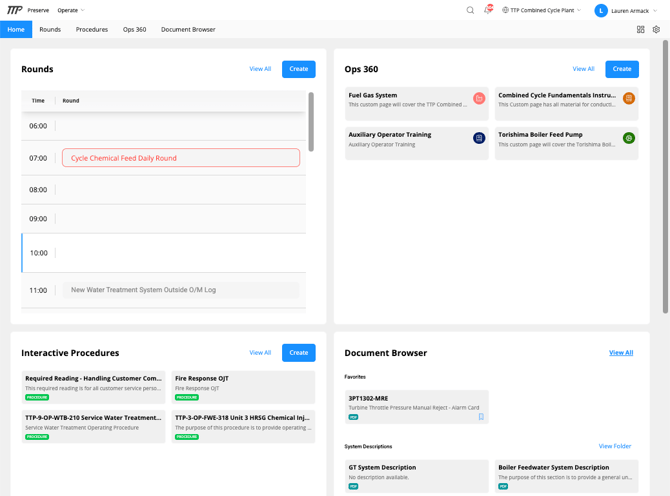
Home is made up of four sections. Your site admin decides which ones appear and in what order. Each section has View All to open the full list, and admins also see Create.
Rounds: Today's schedule, hour by hour. Each round appears at its scheduled time, and the current hour is marked with a blue line. A round outlined in red is overdue. Click a round to open it.
Ops 360: Tiles for your site's custom pages, such as system overviews or training material. Click a tile to open the page.
Interactive Procedures: Cards for your site's procedures. Click a card to open the procedure.
Document Browser: Your Favorites, followed by the document categories your admin has set up (for example, "System Descriptions"). Click View Folder to see everything in a category, or View All to open the full Document Browser.
Changing your dashboard
- For yourself: if your site allows it, click the grid icon at the right end of the navigation to show, hide, or reorder sections. See Customizing Your Dashboard Focus.
- For everyone at a site: admins set the default layout from Operate Settings. See Setting Up the Site Dashboard Layout.