
Favorites keep the documents and folders you use most within easy reach, so you don't have to dig through folders every time you need a P&ID, a manual, or a set of alarm setpoints.
Favorite a document or folder
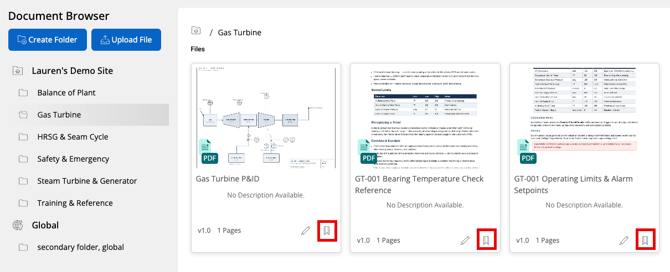
- Open the Document Browser and find the document or folder.
- Click the bookmark icon at the bottom right of its card, next to the pencil.
The bookmark fills in, and the item is added to your favorites. To remove it, click the bookmark again.
Find your favorites
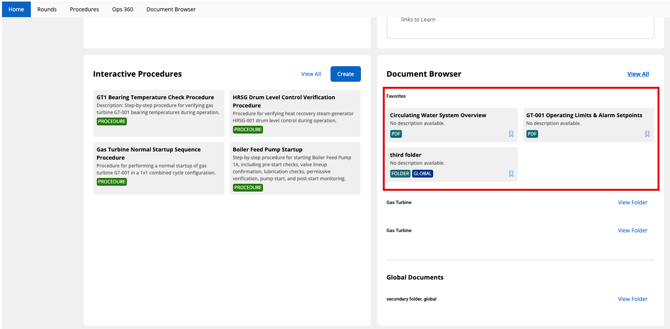
Your favorites appear at the top of the Document Browser section on your Home dashboard, under Favorites. Each card shows its name and a label for what it is, such as PDF or FOLDER. Items from your organization's global documents are also labeled Global.
Click a favorite to open it.
💡 Don't see the Document Browser section on Home? You may be able to move it up or turn it on. See Customizing Your Dashboard Focus.
💡 Don't see the bookmark? Read Only users can view documents but can't favorite them. See Role Types for what each role can do.