
When you first sign in to Preserve, you land on the Portal: the launching pad for every product your organization has enabled.
The Portal homepage
The Portal shows a card for each Preserve product. Click Launch on a card to open that product.
Switching between products
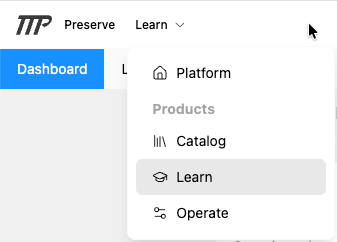
Once you're inside a product, use the App Switcher next to the Preserve logo (it shows the product you're in, such as Operate) to move between Platform, Operate, and Learn without going back to the Portal.
The Top Bar
The top right of the page looks the same in every product:
- Search (magnifying glass): finds documents, procedures, rounds, Ops 360 pages, courses, learning paths, and qualifications, including by system code
- Notifications (bell): alerts such as completed rounds, out-of-range readings, and approvals
- Site selector (globe icon): switches the site you're working in. The site you choose applies in both Operate and Learn, so switching in one switches the other. In Learn, you may also see Global, which shows your whole organization.
- Assignment selector (Operate, only if you have assignments): switches your job function for the day, which focuses your Home dashboard on the rounds and procedures for that role
- Your name: opens your account menu
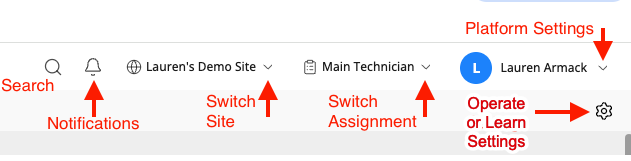
Below this row, aligned to the far right, is a standalone gear icon — this opens Operate Settings and is separate from your account menu.
The main Operate navigation runs across the page: Home, Rounds, Procedures, Ops 360, Document Browser.

Your account menu
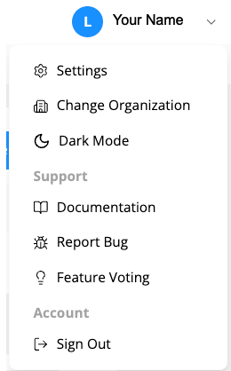
Click your name in the top right to open the account menu. What you see depends on your role:
For all users:
- Change Organization — switch between organizations if you belong to more than one
- Dark Mode — toggle between light and dark mode
- Support
- Documentation — opens the Preserve help center
- Report Bug — send a bug report directly to TTP
- Feature Voting - propose new features, vote on other's ideas (5 votes per person, retractable), see proposals ranked by community votes
- Sign Out
For Platform Admins only:
- Settings — appears at the top of the menu; opens Platform-level settings for managing users, sites, authentication, webhooks, and the audit log
💡 Preserve has three separate Settings areas:
- Settings in your account menu (Platform Admins): users, sites, authentication, webhooks, and the audit log
- Operate Settings, the gear icon below the Operate navigation bar (Operate Admins): document uploads, system codes, dashboards, Bulk Meta, and tags
- Learn Settings, the gear icon at the right end of the Learn navigation (organization-level Learn Admins): which sites can see each course, learning path, and qualification