
Every course, learning path, and qualification in Preserve Learn belongs to your organization. This guide shows organization-level Learn Admins how to choose which sites can see each one, and what happens when training is added to or removed from a site. For the basics of how sites work in Learn, see Understanding Sites in Preserve Learn.
This guide is for organization-level Learn Admins. Learn Admins at a single site can see where training is visible but can't change it. See "Learn Admins at a single site" at the end of this article.
First time setting up? Start here
When sites first arrive in Learn, your existing training isn't turned on for any site yet. Learners aren't affected, and no history changes, but anyone who works in a single site will see an empty catalog until you make training available there.
Set up content for a specific site
The fastest way to set up a site is Include all:
- Click the gear icon at the right end of the Learn navigation to open Learn Settings.

- Click the Site tab, then click Manage on the site you want to set up.
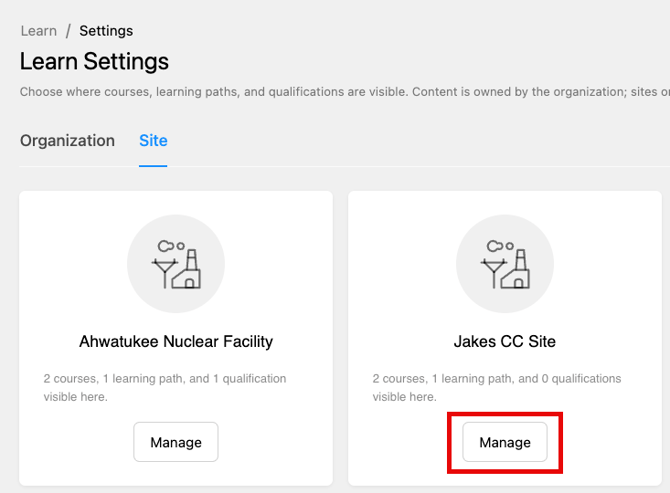
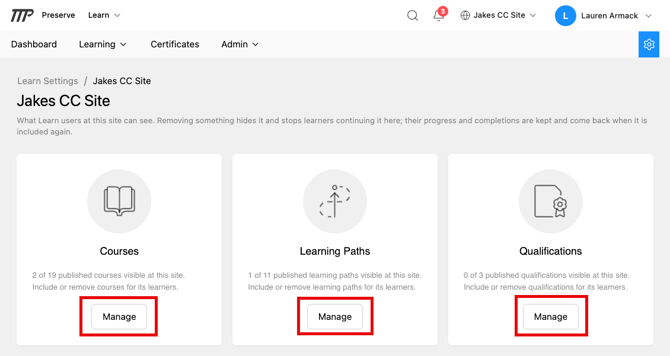
- Click Manage on the Learning Paths card, or Courses, or Qualifications.
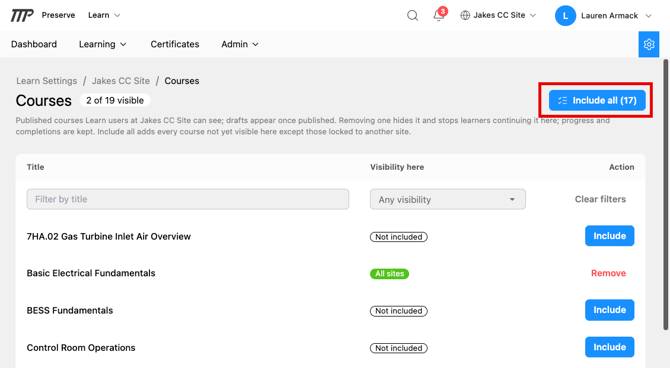
- Click Include all at the top right, or, select individual courses, learning paths, or qualifications to add to this site.
- Repeat for the other content types and other sites as needed.
Everything published is now visible at that site, except training that may be locked to a different site. Including a learning path or qualification in a site brings its courses along, so starting with Qualifications and Learning Paths may often cover most of your courses too.
💡 Only published training appears in Learn Settings. Drafts show up once they're published.
Filters
- The table lists every published item and its status at this site:
- All sites: already visible everywhere, including here
- Included: visible here
- Not included: not visible here yet
- Locked to this site: belongs to this site only
- Locked to [another site]: belongs to a different site and can't be included here
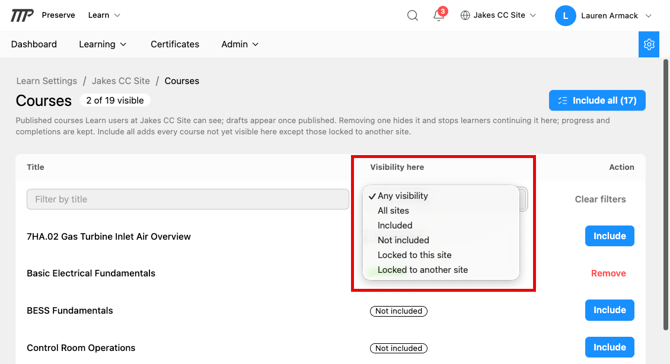
Rows with learners working on them show how many, for example "3 learners in progress here."
[Screenshot: a site's Learning Paths page with Include and Include all]
Set visibility for one item across several sites (Organization tab)
Use this to decide every site that can see one course, learning path, or qualification.
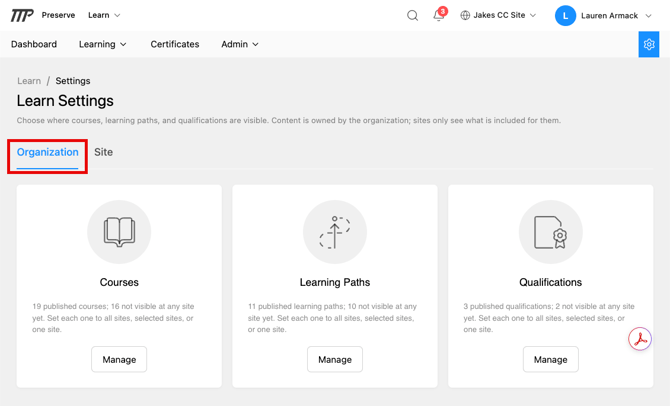
- In Learn Settings, stay on the Organization tab and click Manage on the Courses, Learning Paths, or Qualifications card.
- Find the item. You can type in the title box, or filter by visibility (All sites, Selected sites, No sites yet, or Locked to a site). Clear filters resets both.
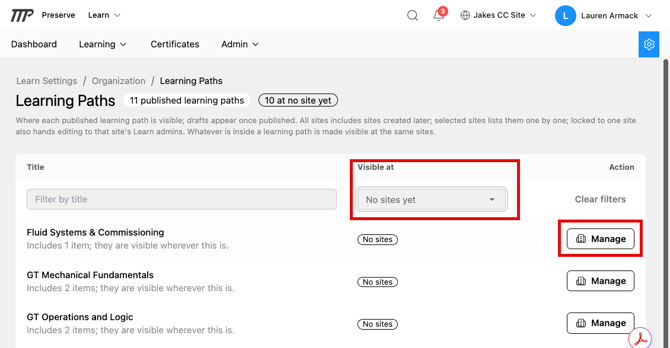
- Click Manage on the item's row. The Site Visibility window opens.
- Choose one option:
- All sites: every site now and in the future
- Selected sites: only the sites you check
- Locked to one site: one site only. That site's Learn Admins can edit it, and no other site can include it.
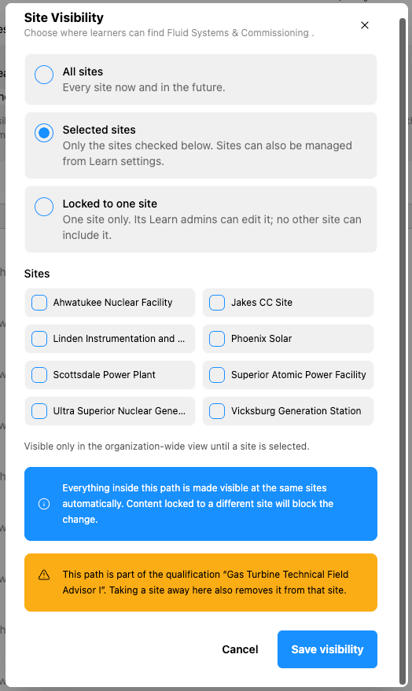
- Check the site or sites. A note under the list confirms your choice, for example "Visible at 2 sites."
- Click Save visibility.
You'll find the same Site Visibility window on each course, learning path, and qualification's edit page: look for the Site Visibility section and click Manage.
💡 To lock an item to one site, first uncheck all but one site. The Locked to one site option stays greyed out while more than one site is checked.
How learning paths and qualifications affect their courses
Learning paths and qualifications keep their parts together, so learners can always finish what they start:
- Including a learning path or qualification at a site also includes its courses (and, for a qualification, its learning paths).
- Removing a learning path or qualification leaves its courses where they are.
- Removing a course also removes any learning path or qualification at that site that contains it. Preserve lists these before you confirm.
- When a draft course is published, it becomes visible wherever the learning paths and qualifications that contain it already are.
Preserve will stop you when a change would break a path or qualification:
- "Can't add [title]": you tried to add a course that's locked to one site into a learning path (or a path into a qualification) that's visible at other sites.
- "Can't publish": a learning path or qualification contains a course locked to one site, but the path or qualification is visible somewhere else.

In both cases, change the locked course to Selected sites or All sites first, then try again.
Removing training from a site
- Open the site's Courses, Learning Paths, or Qualifications page (Option 1) and click Remove on the item's row, or uncheck the site in the Site Visibility window (Option 2).
- Read the confirmation window. It tells you:
- which learning paths or qualifications will also be removed (red warning)
- how many learners are working on it at that site (yellow note)
- that a removed path or qualification leaves its courses in place (blue note)
- Confirm.
What happens next:
- Learners at that site can no longer find, enroll in, or continue the training there.
- Nothing is deleted. Enrollments, progress, completions, and certificates are kept and still appear in reports. If you include the training again, learners pick up where they left off.
- If the item was set to All sites, it switches to Selected sites with every other site still checked.
- If the item was locked to that site, it's left visible in the Global view only.
Training locked to one site
Training becomes locked to a site when someone creates it (or duplicates it, or imports it) while that site is selected in the site selector. The create form shows a blue notice when this will happen. To create training for the whole organization, switch the site selector to Global first.
Locked training can only be edited from inside its site. In the Global view, you'll find it in a greyed-out Locked to a site section on the Courses, Learning Paths, and Qualifications pages. From there you can:
- Switch to that site in the site selector to edit the content, or
- Click Edit to change its site visibility and make it available to more of the organization.
If a site is deleted, training locked to it isn't lost. It moves to No sites so you can make it available elsewhere.
Learn Admins at a single site
A Learn Admin whose role is only at one site can:
- create courses, learning paths, and qualifications (they're automatically locked to that site)
- edit training locked to their site
- manage that site's learners, reviews, and reports
They can't change site visibility, edit training shared with other sites, or open Learn Settings. The Site Visibility section on edit pages is view-only for them.
Troubleshooting: a learner can't find training
Work through these in order:
- Is it published? Drafts never appear to learners.
- Is it visible at the learner's site? Open Learn Settings → Site tab → their site, and look for the item. Click Include if it says Not included.
- Is it locked to a different site? If the row says Locked to [another site], change the item's visibility from the Organization tab first.
- Is the learner in the right site? Ask them to check the site selector at the top of the page, and switch if they work at more than one site.
- Is it a restricted or private learning path? Restricted paths need an approved access request. Private paths need an admin to enroll the learner.