
Preserve Learn keeps one training library for your whole organization and lets each site see only the parts of it that apply there. This article explains how that works, who can switch between sites, and what happens to your training history.
One library, shared with each site
Every course, learning path, and qualification belongs to your organization. Each one has a site visibility setting that decides which sites can see it. A plant that only needs safety training sees safety training; a plant running gas turbines can also see the turbine courses.
Global view and site views
Learn works in one of two views, chosen from the site selector (globe icon) at the top of the page:
- Global: your whole organization. You see everyone, and all training that isn't locked to a single site.
- A site (for example, North Plant): Learn narrows to that site. The course, learning path, and qualification lists, search, and your Dashboard show only training made available there. For admins, user lists, review queues, access requests, and reports show only people with a Learn role at that site.
To switch, click the site selector and choose Global, or choose Site Selection and pick a site. You'll come back to the page you were on, now showing the new site.

💡 Your site selection is shared with Preserve Operate. Switching sites in Learn also switches your site in Operate, and the other way around.
Where training is visible
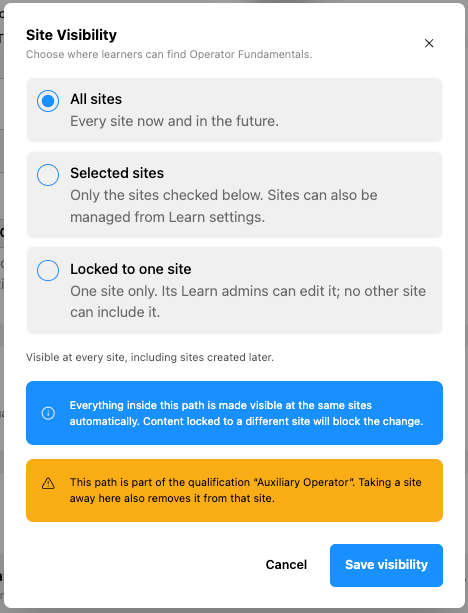
Each course, learning path, and qualification has one of these settings:
| Setting | Where it shows up |
|---|---|
| All sites | Every site, including sites your organization adds later |
| Selected sites | Only the sites an admin has checked |
| No sites | Only in the Global view. This is where new training starts when an admin creates it in the Global view, until they make it available at sites. |
| Locked to one site | One site only. No other site can include it, and it doesn't appear in the Global view for learners. |
Who sees what
What you see depends on your Learn role:
| Your Learn role | What you can choose in the site selector |
|---|---|
| Organization-level Learn Admin, Manager, or Supervisor | Any site in the organization, or Global to see the whole organization at once |
| Organization-level Learner with a role at one or more sites | Only those sites, or Global to see the whole organization at once |
| Organization-level Learner with no site roles | No site selector. Learn always shows your whole organization (everything except training locked to a single site). |
| A role at one or more sites, but no organization-level Learn role | Only your sites. If you have just one, Learn opens in it automatically. |
A role at a site only applies while that site is selected, and it never lowers your organization-level role. If you have both, the higher one applies.
Learning paths and qualifications keep their parts together- Making a learning path or qualification available at a site brings its courses along. Admins don't need to include each course separately.
- Removing a course from a site also removes any learning path or qualification there that contains it, because learners can't complete them without it. Preserve lists what else will be removed before the admin confirms.
- Removing a learning path or qualification from a site leaves its courses there.
- Draft training never appears at any site. When a draft course is published, it automatically becomes available wherever the learning paths and qualifications that contain it already are.
Your training history is always saved
Removing training from a site only controls what learners there can find and start. Enrollments, progress, completions, and certificates are never deleted, and they still appear on learner profiles and in reports. If the training is made available at the site again, learners pick up where they left off.
If Learn looks empty
When sites first arrive in Learn, existing training isn't turned on for any site yet, and no one has a site role yet. Learners aren't affected and their history doesn't change, but a Supervisor, Manager, or Learn Admin who has a site selected may see empty Learn pages. To fix it:
- Switch the site selector to Global to see everything, or
- Ask an organization-level Learn Admin to make training available at that site (see Setting Where Learn Content Is Visible).
The same applies to a newly added site: it starts with nothing in its Learn catalog until training is made available there.
Who can change where training is visibleOnly organization-level Learn Admins can change site visibility. They can do it from:
- The Site Visibility section on each course, learning path, or qualification's edit page, or
- Learn Settings, the gear icon at the right end of the Learn navigation, to manage many items or a whole site at once.
A Learn Admin at a single site can see where training is visible but can't change it. Training they create inside their site is automatically locked to that site.
💡 Admins: before creating new training, check the site selector. Training created in the Global view belongs to the whole organization and starts at No sites. Training created with a site selected is locked to that site.