
Ops 360 pages are reference pages your site's admins build for you. Each one brings together what you need to know about a system, piece of equipment, or task, so it's all in one place instead of spread across documents. A page can hold text, images, videos, tables, linked documents, and checklists.
Common examples include a system overview, a shift turnover checklist, or a training hub for new operators.
Pages are grouped into categories, such as "HRSG" or "Water Treatment," so related pages stay together.
Where to find them
On the Home dashboard
Your admin can choose categories to show on Home. Look for the Ops 360 section: each category is listed with its pages under it. Click a page to open it.
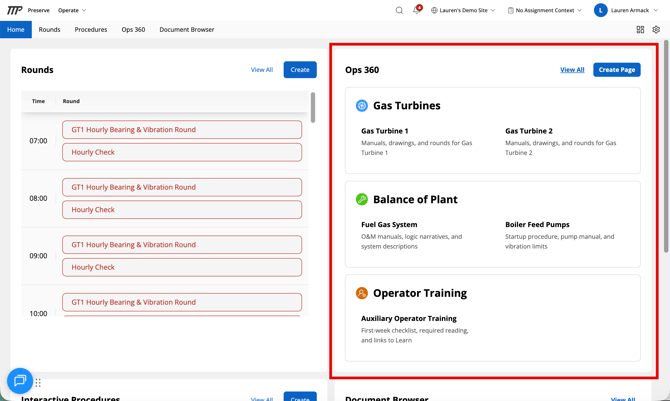
Not every category is on the dashboard. To see everything, click View All in the Ops 360 section.
From the Ops 360 menu
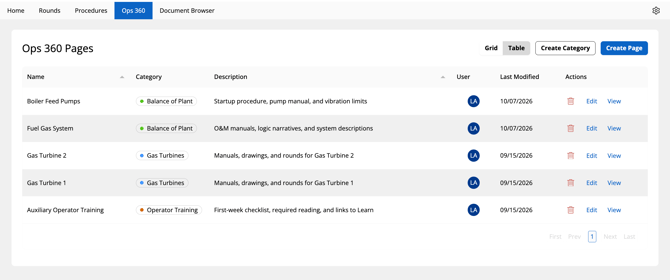
Click Ops 360 in the navigation bar to open Ops 360 Pages. This lists every page at your site, grouped by category. Use the toggle at the top right to switch between:
- Grid: pages grouped under each category
- Table: one list of every page with its category and description
Click a page to open it.
With search
Search finds Ops 360 pages by name, and by the name or number of any system code added to the page. For example, searching for a pump's system code shows its Ops 360 page along with the documents, procedures, and rounds for that pump.
💡 Ops 360 shows the pages for the site selected in the top bar. If you work at more than one site, switch sites to see the other site's pages.