
You will sign in to Preserve with your work email. Depending on how your organization set up Preserve, you'll either enter a password you created or sign in with your Microsoft work account. Not sure which? Ask your admin, or just start below and Preserve will show you the right next step.
Step 1: Go to the sign-in page
Go to preserve.tectrapro.com in any web browser and click Sign In at the top right.
Step 2: Enter your email
Type your work email address and click Continue.
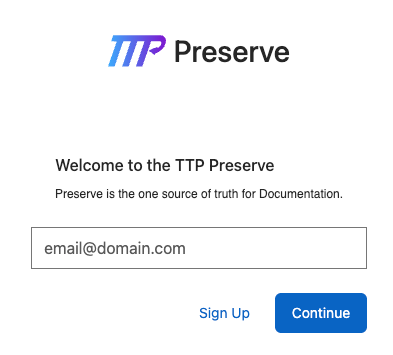
Step 3: Finish signing in
If your organization uses Preserve passwords: type your password and click Sign In.
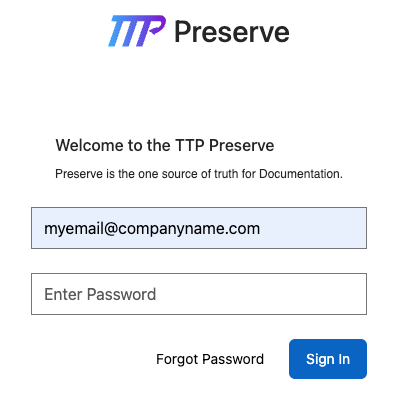
If your organization uses Microsoft sign-in: you're taken to Microsoft to sign in with your company email. You may be asked to approve the sign-in on your mobile device, the same way you do for your other work apps. If you're already signed in to Microsoft, this is usually quick.
Once you're in, you land on the page your organization has chosen: the Portal, the Learn dashboard, or the Operate dashboard.
First time signing in, or forgot your password?
Your account is created for you by your admin, so you never need to sign up. When you're added, Preserve sends you an email with a link to create your password. If you can't find that email, or you've forgotten your password, you can set a new one yourself:
- On the sign-in page, enter your email and click Continue.
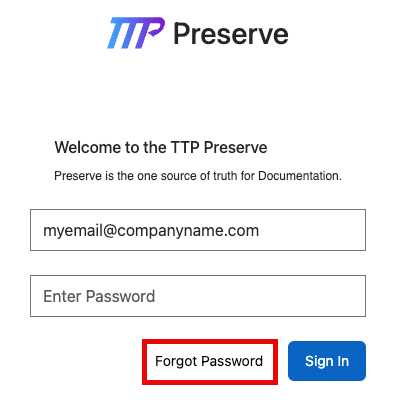
- Click Forgot Password.
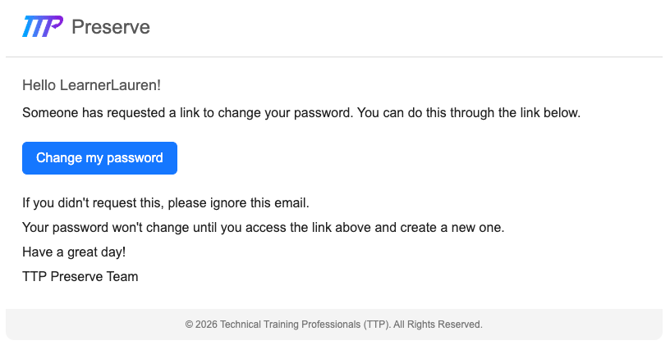
- Check your email for a message from preserve@tectrapro.com called Reset password instructions, and click Change my password.
- Create your new password, then sign in with it.
Your password needs at least 8 characters, including an uppercase letter, a lowercase letter, and a symbol.
💡 If your organization uses Microsoft sign-in, your password is your company's Microsoft password. To change or reset it, contact your IT team.
Good to know
- Don't use Sign Up. It creates a brand-new, empty organization, not an account in yours. Your admin has already set up your account.
- Check your junk folder. Emails from preserve@tectrapro.com can land there the first time.
- Don't see a password box? It appears after you click Continue, not on the first screen.
- Still stuck? Contact your site admin. See Getting Help with Your Account.