Everything waiting on a reviewer lives in one place: Admin → Learning Management. This article covers each type of review, plus enrolling learners and tracking their progress.
Who can do what
| Task | Supervisor | Manager | Learn Admin |
|---|---|---|---|
| Confirm on-the-job training sessions | ✓ | ✓ | ✓ |
| Sign off on performance tasks | ✓ | ✓ | ✓ |
| Approve access requests and enroll learners | ✓ | ✓ | |
| Track progress and run reports | ✓ | ✓ | |
| Grade knowledge assessments and approve oral boards | ✓ | ||
| Unenroll learners | ✓ |
Final review is done by the people added to the qualification's review board.
These roles can be given for your whole organization or for one site. With a site role, you only review the people at that site.
Your review queue
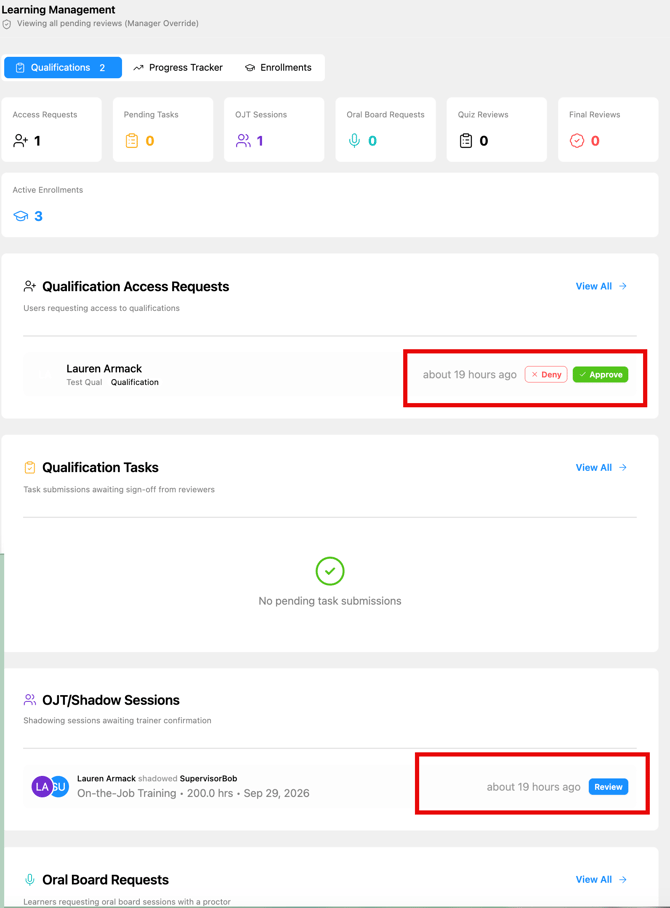
Click Admin in the Learn navigation, then Learning Management. The Qualifications tab shows a count card for everything waiting:
- Access Requests: learners asking to join a restricted qualification
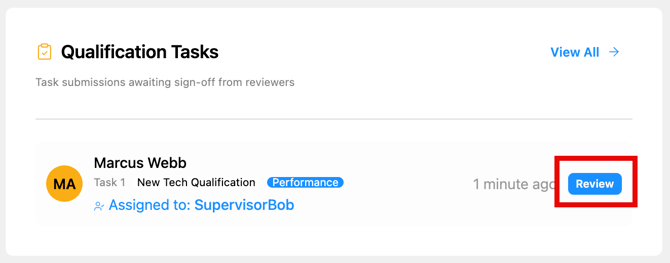
- Pending Tasks: performance tasks waiting for sign-off
- OJT Sessions: shadowing sessions waiting for confirmation
- Oral Board Requests: learners ready for an oral board
- Quiz Reviews: knowledge assessments waiting to be graded
- Final Reviews: qualifications ready for final approval
Below the cards, each queue has its own table.
⚠️ Check this page regularly. Preserve doesn't send a notification for every item. Quiz reviews and final reviews in particular only show up here.
💡 With a site selected, Learning Management shows only that site's learners. Switch to Global to see everyone.
Access requests
Click Approve or Deny next to a request. To handle several at once, click View All, check the requests, choose Approve Selected or Deny Selected, and click Apply.
Approved learners are enrolled right away and get a notification. Denied learners get a notification and an email.
Enrolling learners yourself
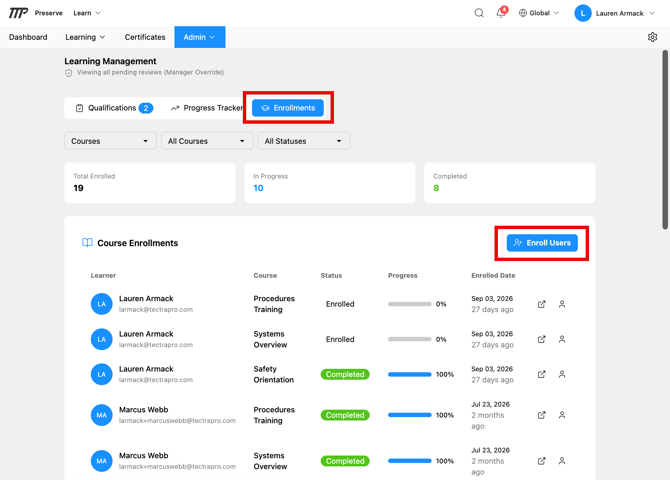
- In Admin > Learning Management, go to the Enrollments tab and click Enroll Users.
- Set Enrollment Type to Qualification, then choose the qualification.
- Search for people by name or email, select them, and click Enroll Selected Users.
Confirming on-the-job training sessions
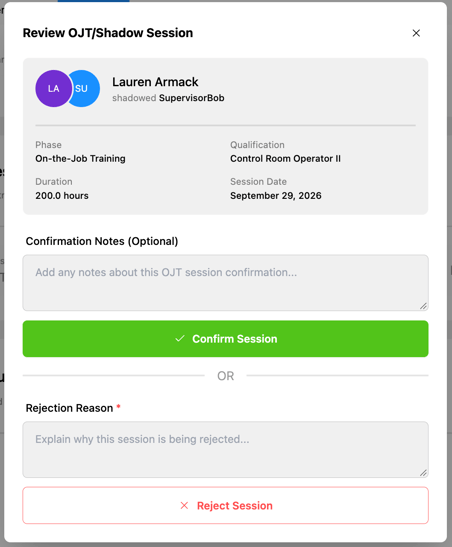
When a learner logs a shadowing session, the person they shadowed confirms or rejects it. Pending confirmations appear on that person's Dashboard and in the OJT Sessions queue. Only confirmed sessions count toward the learner's required hours.
Signing off on performance tasks
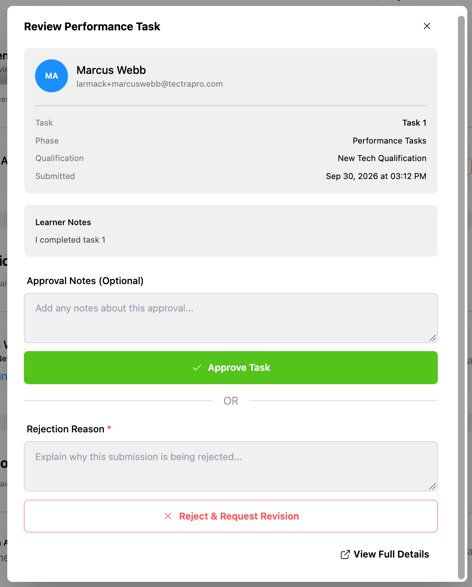
Open the task from Pending Tasks, review what the learner submitted (including any attached file), and approve or reject it. If you reject it, add notes so the learner knows what to fix before resubmitting.
Either the supervisor who was selected during the task or a learn admin can approve tasks.
Running an oral board
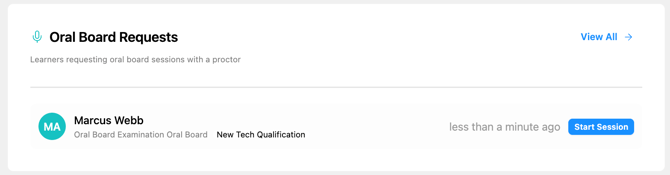
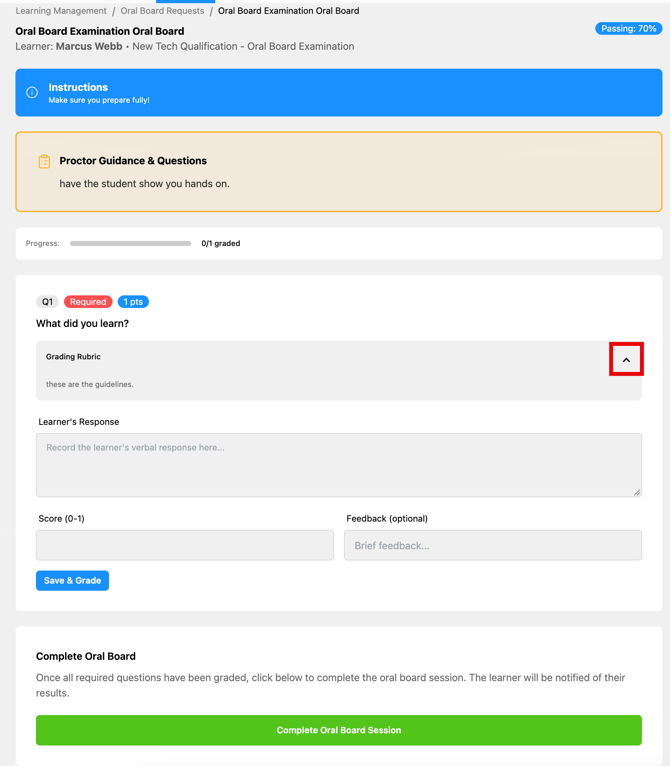
When a learner requests an oral board, it appears under Oral Board Requests. The proctor conducts the exam in person, asking each question and scoring the answer against its rubric. Preserve calculates pass or fail from the passing score, and the learner is notified when the exam starts and finishes.
Completed oral boards can be opened later to see the result, the proctor, the duration, and each answer's score and feedback.
Grading a knowledge assessment
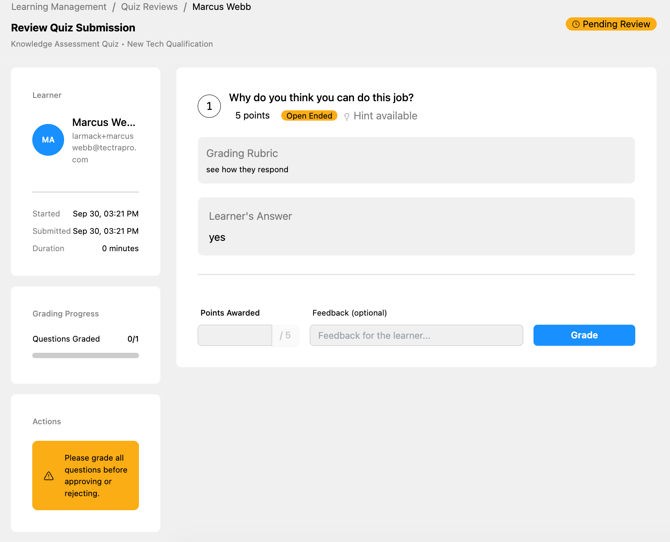
- Open the submission from Quiz Reviews. You'll see each question, the learner's answer, and the grading rubric.
- Enter points for each question and click Grade. To change a score, click Update.
- Once every question is graded, choose Approve (with optional notes) or Reject and allow retry. Scroll down if you don't see these buttons.
Final review
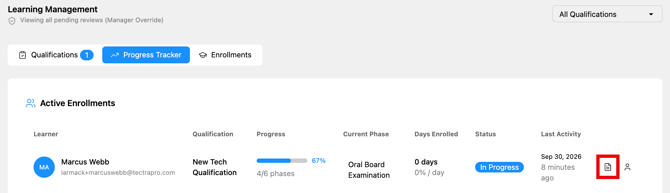
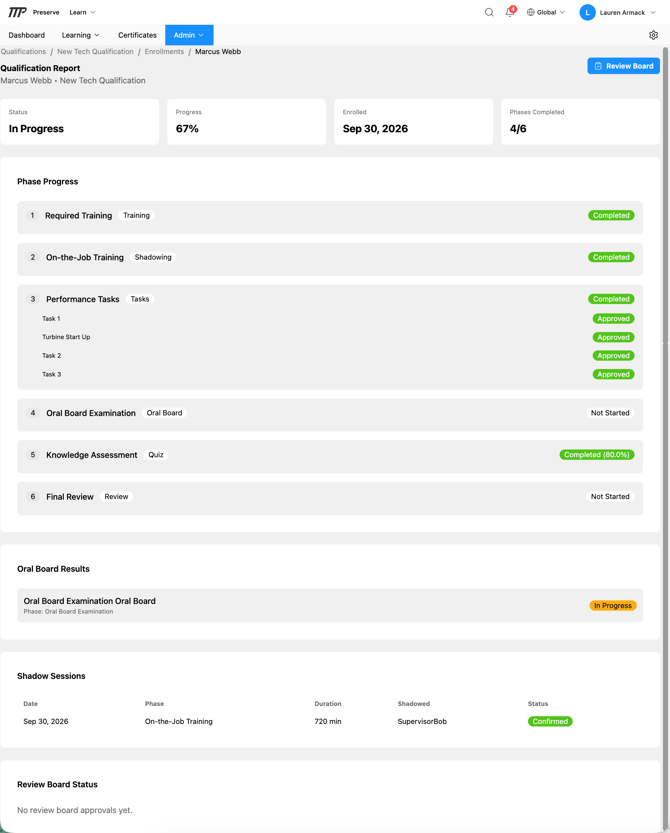
- Go to the Progress Tracker tab and click the report icon next to the learner. The Qualification Report opens.
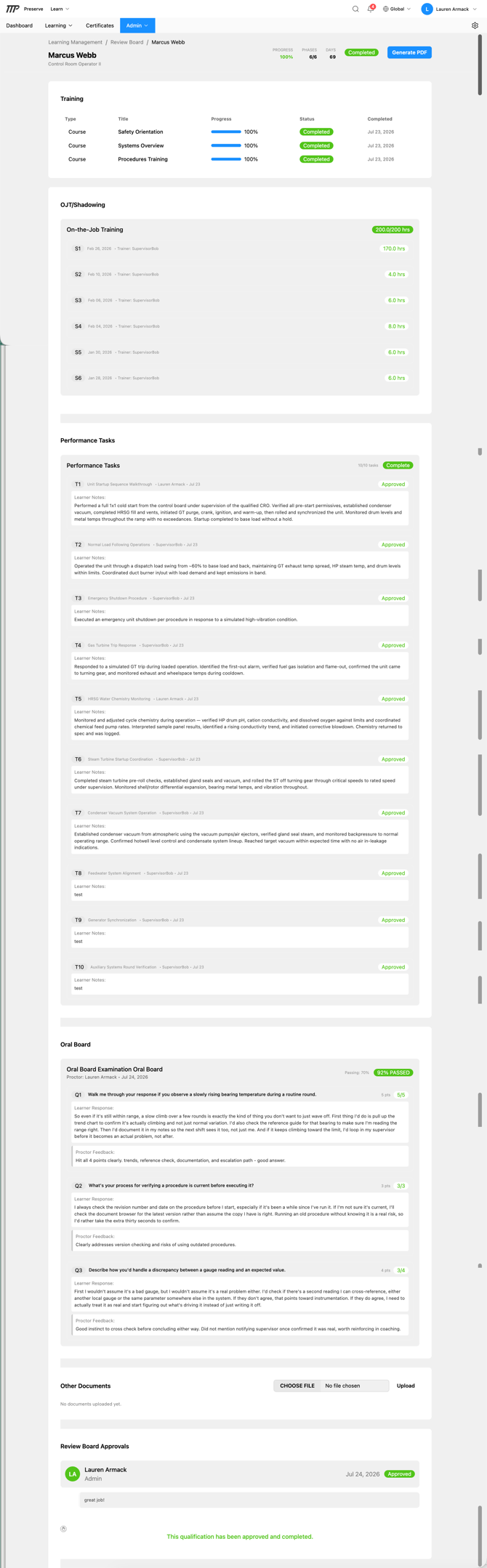
- Review each phase. Click Generate PDF if you need a copy for your records.
- Click Approve or Reject.
Approving completes the qualification and issues the learner's certificate automatically. Rejecting sends it back so the learner can redo what's needed and resubmit.
A few rules to know:
- Approve and Reject only appear once the learner has submitted the qualification and every phase is complete.
- Nobody can approve or reject their own qualification, including Learn Admins and board members. The page tells you another reviewer is needed.
- The status badge shows where the qualification stands: Enrolled, In Progress, Pending Review, Completed, or Rejected.
- A completed qualification can't be sent back to Pending Review. A rejected one can be resubmitted by the learner.
Tracking progress
The Progress Tracker tab lists everyone enrolled in a qualification: progress, phases completed, current phase, days enrolled, status, and last activity. Filter by qualification at the top right. Use the icons on each row to open the learner's report or profile.
💡 Learn Admins can unenroll a learner from the Enrollments tab. Their progress is kept, so if they re-enroll later, they pick up where they left off.
Viewing the Full Report
Click the Review Board button on the top of the Final Review page for a learner. You can also get to the full report by going to User management, then finding the user's completed qualification and clicking on View.
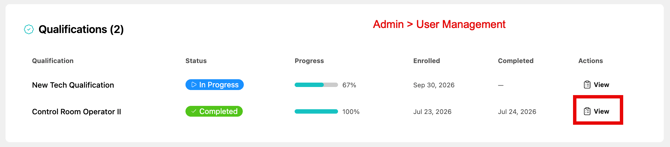
Clicking on View will provide a full Review Board view of the qualification. You can also click the Generate PDF button on the top right if needed.