
A Required Reading module links a document directly from Preserve Operate into a course. Learners read the actual operational document and then answer comprehension questions to confirm they understood it. When the document is updated in Operate, learners automatically see the current version the next time they access it.
Note: Required Reading modules are only available if your organization has Preserve Operate enabled. If Operate isn't part of your subscription, this module type won't appear.
Step 1: Add a Required Reading module
Inside the course you're building, click + Add Module. Give the module a title and description, then select Required Reading as the module type. Click Create & Build Content.
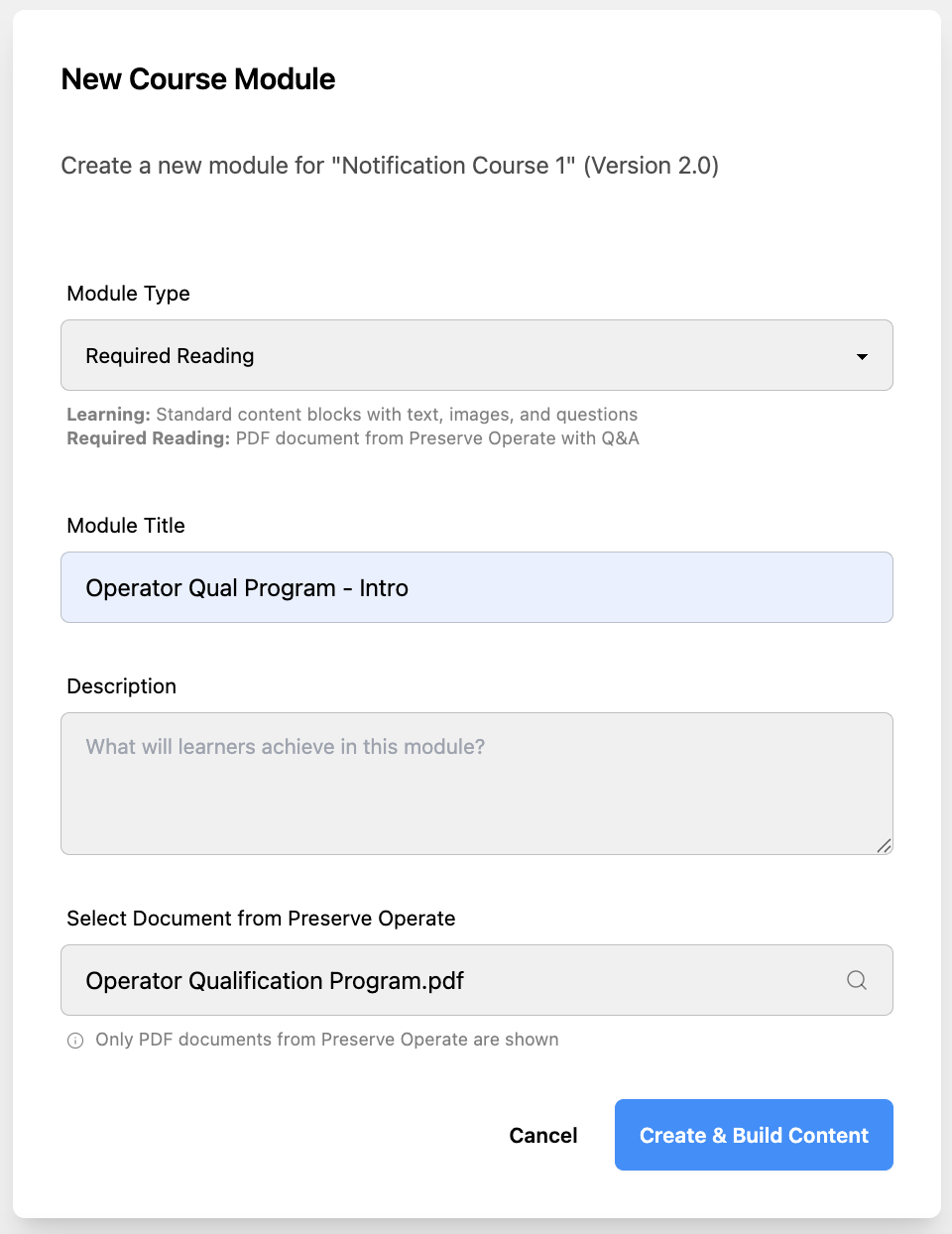
Step 2: Link the document
A search panel lets you browse all documents in Preserve Operate. Find the document you want to use and click Link Document.
Then click the Create & Build Content button.
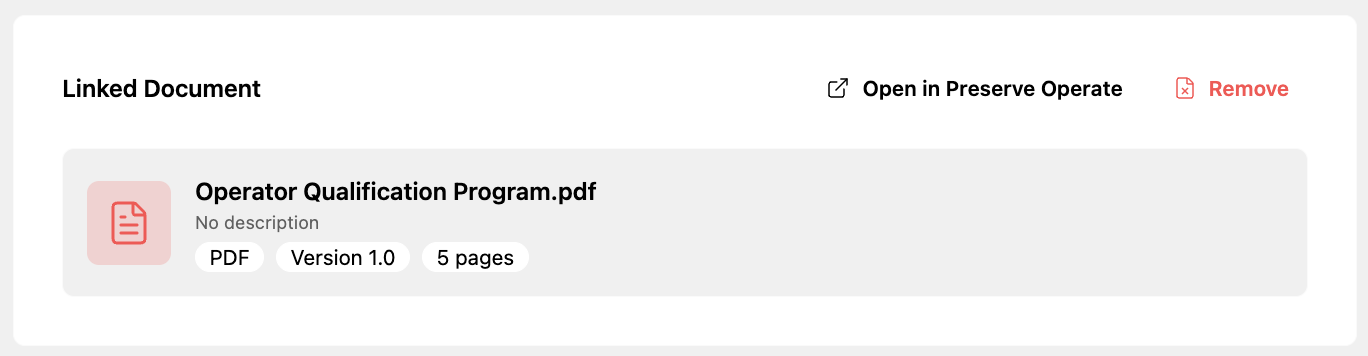
Once the document is linked, you'll see:
- The document's title and page count
- The current version
- An Open in Preserve Operate button to view it directly
- A Remove button if you need to swap it for a different document
Step 3: Add comprehension questions
Under the linked document, click + Add Question to build comprehension questions. These can be Multiple Choice or True/False. Each question is auto-graded when the learner submits.
For each question, fill in:
- The question text
- Answer options and the correct answer
- Whether the question is Required (must be answered to complete the module)
💡 Required Reading comprehension questions don't currently have an "Include in course quiz" option — these questions are specific to this module and are not pulled into the final course quiz pool.
Step 4: Save and finish
Click Save & Finish when done. The module will appear in the course's module list. Learners must correctly answer all comprehension questions before they can proceed to the next module.
What learners see
When a learner reaches a Required Reading module, they see the full document displayed in the Preserve PDF viewer. After reading, they click Open Q&A (showing their progress, e.g., "0/3") — a slide-out panel appears with the comprehension questions. They answer all questions and click Check Answers. If all answers are correct, the module is marked complete.