
The Preserve mobile app lets you complete your rounds on a phone or tablet, including in areas with no signal, and keeps the documents you need close at hand. This article walks you through signing in, choosing your site, completing a round, and adding documents to your device.
Prefer to read? The steps below cover everything in the video.
Sign in and choose your site
- Open the Preserve app and sign in with your Preserve credentials. These are the same credentials you use for Preserve on the web.
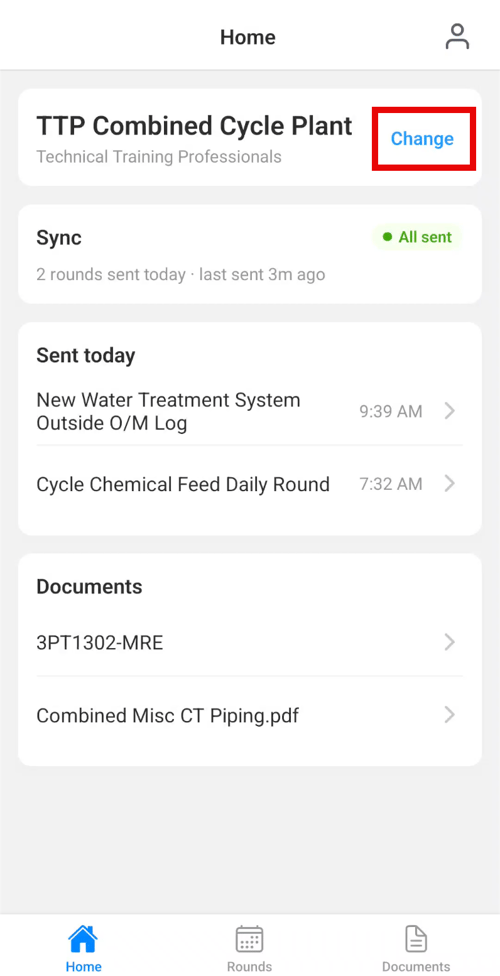
- On the Home screen, check the site name at the top. Your organization appears underneath it.
- If you work at more than one site, select Change, then choose your organization and site. A check mark shows where you are working.
Check your site before you start a round, so your readings are recorded at the right site. You can also reach the site list from your account, along with your settings.
Your Home screen
Home is your starting point. It shows three things:
- Pick up where you left off. If you have a round in progress, select Continue round to go straight back to it.
- Sync. This shows whether your completed rounds have been sent. "All sent" means everything has reached the rest of your team. Sync is a status, not a button, so there is nothing to select.
- Documents. The documents you have added to your device appear here for quick access.
Complete a round
Download the round
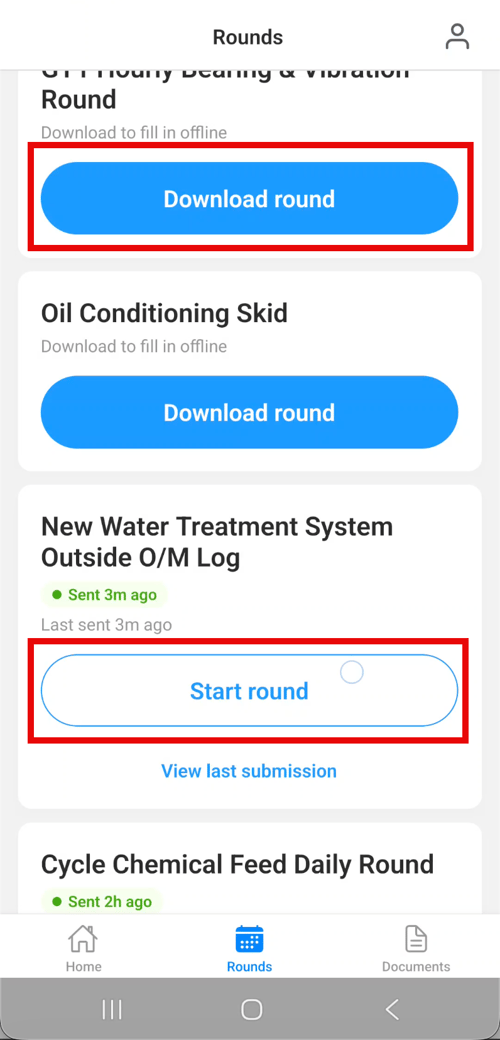
Go to Rounds to see every round for your site. If a round is not on your device yet, or a new version has been released, you will see Download round. Select it once and the round is saved to your device, so you can complete it without a signal.
You will only be asked to download the round again if it is updated, if you have recently updated the TTP Preserve app, or if you clear the app data on your device.
Start the round and enter your readings
- Select Start round.
- Preserve shows one item at a time, with what you are checking, where to find it, and the safe range where one applies. Some items also link to a system description.
- Enter the reading or select the value. Preserve tells you right away whether it falls within the safe range.
- Select Log Item to move to the next item. Select Back at any time to change an earlier entry.
Add a photo or a note
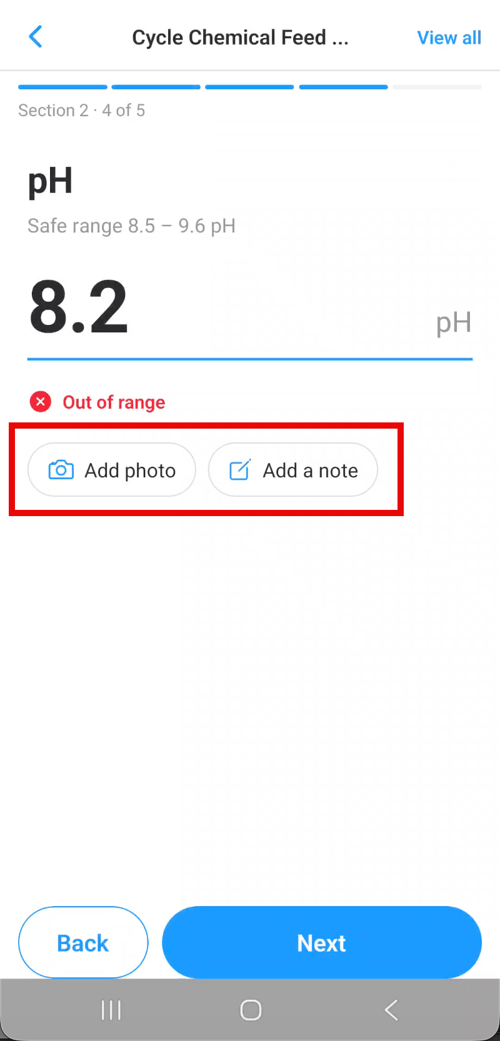
Each item has Add a Photo button and an Add Note button.
- Add a photo when a reading is outside its safe range, or when something does not look, sound or smell right.
- Add a note when the reading needs explaining, or when you took action.
For example, if pH reads 8.2 against a safe range of 8.5 to 9.6, take a photo of the analyzer display and add a note such as: "pH 8.2, below safe range. Increased ammonia feed rate and notified the control room. Will recheck next round."
Check your progress
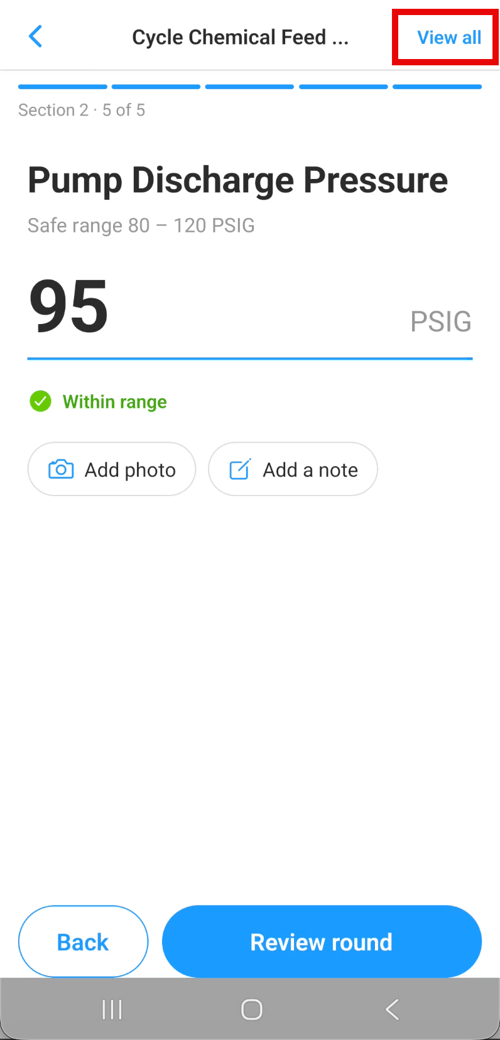
Select View all to see every item, grouped by section, with a check mark on each one you have completed. Select any item to go straight to it. This is the quickest way to spot anything you missed.
Pause a round and come back to it
If you are called away, go back or move to another part of the app. Your round is saved as In progress, and you can return to it later, even after starting a different round. Home and the Rounds list both show how far along you are.
Start a round over
Select Restart to begin the round again. Preserve asks you to confirm first, because everything you have entered so far is discarded. Select Keep to go back, or Restart to clear the round.
Submit the round
- After the last item, you arrive at Review Round, which lists every item and your entries.
- Add anything that applies to the whole round in Additional Notes.
- Select Submit Round, then confirm.
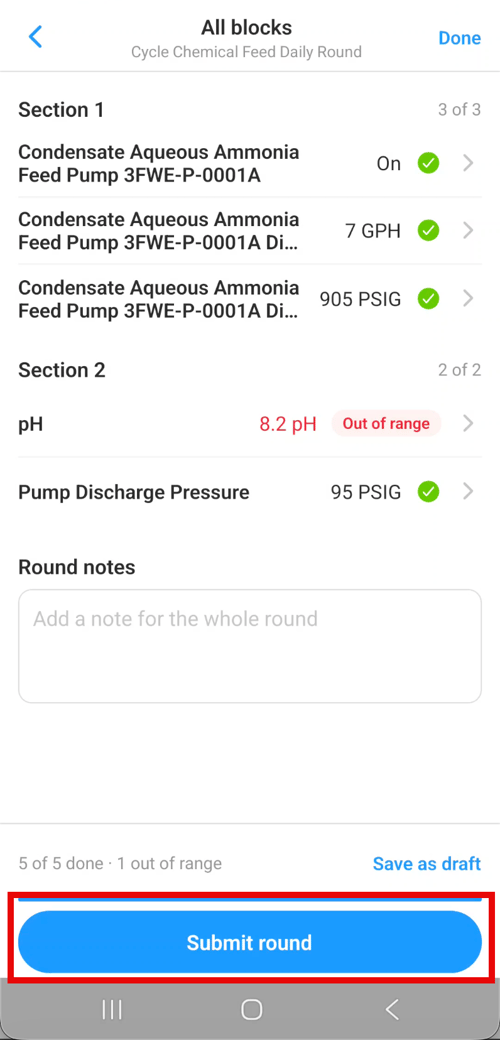
The round then shows Sent just now. If you completed it without a signal, Preserve holds onto it and sends it automatically once you are back in range. You can watch that on the Sync card on Home.
To finish a round later from a computer, select Save Draft instead. The round is saved to your drafts in Preserve on the web.
To see the most recent completed round, select View last submission on the round.
Add documents to your device
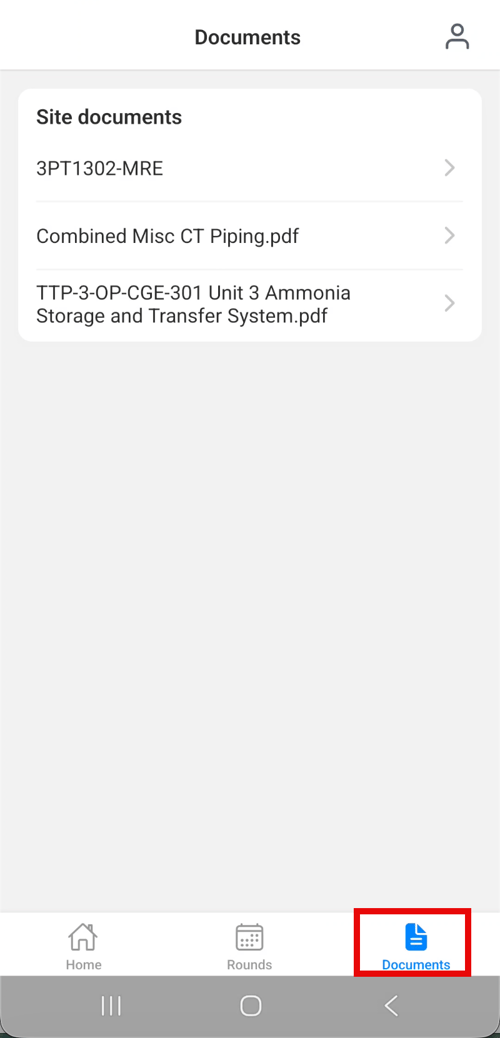
The Documents area holds the documents you choose to add, such as alarm cards and system overviews. Each person builds their own set, so nothing appears there until you add it.
To add a document:
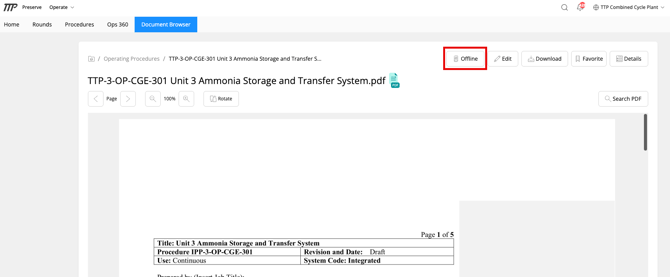
- On your computer, open the document in Preserve on the web.
- Select Offline. A QR code appears.
- Scan the QR code with your mobile device. The document opens in the Preserve app.
- Download the document in the app.
Each scan adds one document, so repeat these steps for every document you want with you. Once a document is on your device, you can open it from Documents or from Home, even with no signal.
Common questions
What happens if I lose signal partway through a round? Keep going. Downloaded rounds work without a connection, and your completed round is sent automatically once you are back in range. The Sync card on Home shows when it has been sent.
Can I work on more than one round at a time? Yes. Leave a round and it is saved as In progress. Start another round, then come back to the first one whenever you are ready.
Where do my drafts go? To a computer. Currently, drafts cannot be restarted from the app. Use the "Back" arrow at the top of the app to pause your round.
Why am I being asked to download a round again? The round has been updated, the Preserve app was updated, or the app data on your device was cleared. Download it again to get the current version.
Why can I not see a document in the app? Documents are added one at a time by each person. If it is not there, scan its QR code from Preserve on the web.