
When you open Preserve Learn, you land on the Dashboard — your personal training home screen. It shows what you're working on and what needs your attention.
Top navigation
The Learn top navigation has four tabs: Dashboard, Learning, Certificates, and Admin (visible only to users with a Manager or Admin role). Organization-level Learn Admins also see a gear icon at the right end of this bar, which opens Learn Settings, where they choose which sites can see each course, learning path, and qualification.

In the top right, you'll find the Search icon, a Notifications bell showing your unread count, Site selector, and your account menu.
The site selector shows Global (your whole organization) or the name of the site you're working in. Click it to switch sites. Everything in Learn, including this Dashboard, shows what's available at the site you have selected. If you don't see a site selector, it means you have an organization-level learner role only. Switching sites in Learn also switches your site in Operate
Finding your way around
As you move deeper into Learn, into a qualification, a learning path, or a specific course, breadcrumbs appear at the top of the page showing how you got there (for example, Qualifications / Qualification Name / Path Name / Course Name). Click any part of the breadcrumb to go back to that page. Breadcrumbs replace back arrows throughout both learner pages and the Admin area.
Metric cards
Across the top of the Dashboard are four summary cards:
- Qualifications — how many qualifications you've been enrolled in
- Active Paths — how many learning paths you're currently enrolled in
- Active Courses — how many standalone courses you're enrolled in
- Certificates Earned — your total completed qualifications

My Qualifications
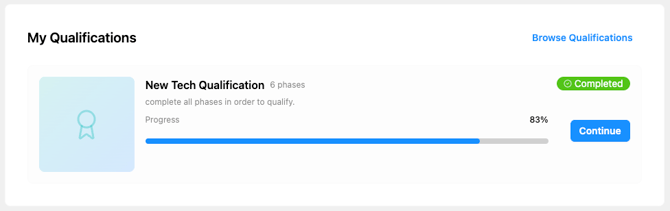
Below the metric cards, the My Qualifications section shows every qualification you're enrolled in. Each card shows the qualification title, number of phases, a description, a progress bar, and a Continue button to jump back in. A Browse Qualifications link lets you explore what's available.
My Active Learning Paths
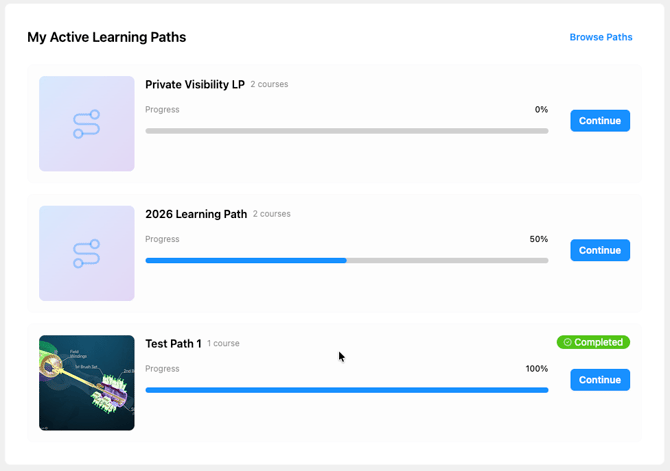
This card shows all learning paths you're currently enrolled in. If you haven't enrolled in any yet, you'll see a prompt to Browse Paths. Progress updates here as you complete courses within each path.
My Active Courses
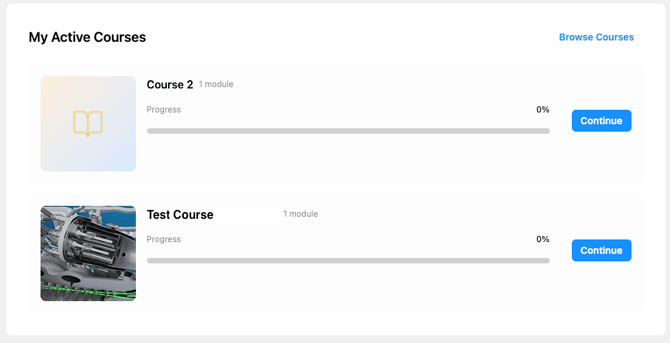
This card shows standalone courses you're enrolled in, plus any courses that are part of a learning path you're enrolled in — all in one place. If you haven't enrolled in any yet, a Browse Courses link takes you to the full course catalog. Progress updates as you work through each course.
Pending review items (Admins and Supervisors)
If you have a Supervisor or Admin role, you may also see cards for:
- Pending OJT Session Confirmations — shadow sessions waiting for your confirmation
- Pending Task Submission Reviews — performance tasks waiting for your review
These appear at the top of the Dashboard when there's something waiting on you.