
Learners earn a certificate when they complete a qualification and the review board approves their Final Review. As a Learn Admin, you can see every certificate in your organization in one place, check which ones are about to expire, and renew, revoke, or reinstate them.
💡 Certificates come only from qualifications. Courses and learning paths don't issue them. If someone earned a qualification before your organization started using Preserve, a Platform Admin can grant credit for it, which also issues the certificate. See Granting Credit for Courses and Qualification
Step 1: Open Certificates
In Learn, open the Admin menu and click Certificates.
The list shows every certificate in your organization, with the holder, the qualification it's for, and its Issued date, Expires date, and Status. Use the tabs at the top to show All, Active, Expired, or Revoked certificates.
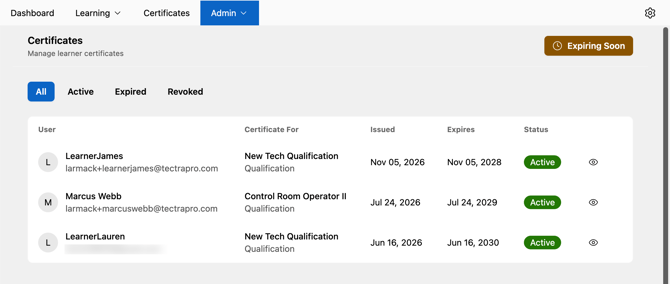
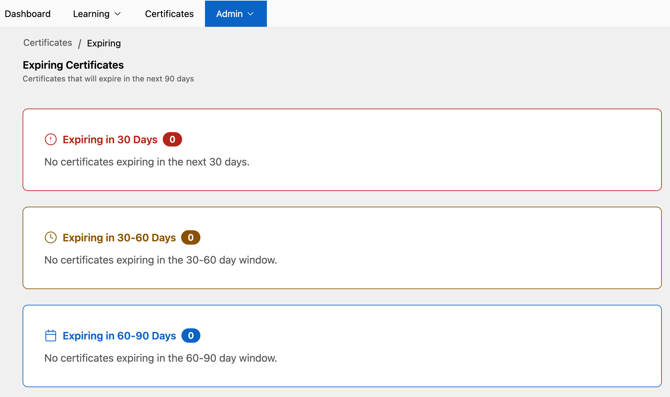
To see certificates that expire in the next 30, 60, or 90 days, click Expiring Soon at the top right. It's a quick way to plan refresher training before anyone lapses.
Step 2: Open a certificate
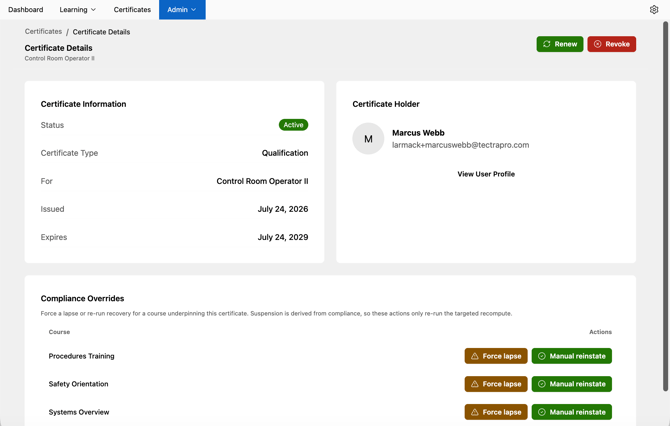
Click the eye icon at the end of a row to open Certificate Details. You'll see:
- Certificate Information: status, type, the qualification it's for, and the issued and expiration dates
- Certificate Holder: the learner's name and email. Click View User Profile to see the learner's profile, where you can view and print their certificate.
- Compliance Overrides: each course behind the certificate (see Step 4)
Step 3: Renew, revoke, or reinstate
Use the buttons at the top right of Certificate Details:
- Renew extends the certificate's expiration date.
- Revoke cancels the certificate. Preserve asks you to confirm, then the status changes to Revoked and the revoke date appears in Certificate Information.
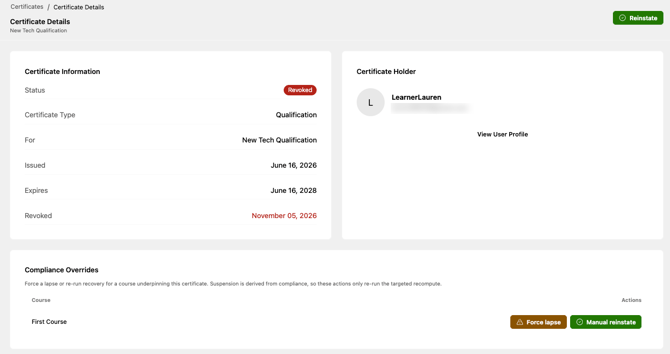
- Reinstate appears on a revoked certificate. Click it to make the certificate active again.
Step 4: Update a course's status right away
A qualification's certificate depends on its required courses staying current. Preserve checks this automatically on a regular schedule. If something changed and you need the certificate to catch up now, for example a course was removed from the qualification, use the buttons under Compliance Overrides:
- Force lapse checks right away whether the learner has lapsed on that course. If they have, the lapse is recorded and the certificate shows as suspended. If the learner is up to date, nothing changes.
- Manual reinstate checks right away whether the learner is back up to date on that course. If they are, the suspension is lifted. If not, the certificate stays suspended until they complete the course.
Neither button changes the learner's training. You can't lapse someone who is up to date, and reinstating never counts as completing a course.