
If your training is already built in a tool like Articulate Storyline or Adobe Captivate, you don't need to rebuild it. Export it as a SCORM, cmi5, or AICC package and add it to a Preserve course. Each package becomes its own module, so a course can hold one package, several packages, or a mix of packages and modules built in Preserve.
Preserve supports SCORM 1.2, SCORM 2004, cmi5, and AICC. You don't need to tell it which one you have; the type is detected from the ZIP file.
Before you begin
You need a course to add the package to. If you don't have one yet, create it first (see Creating a Course), then come back here.
Step 1: Open the Add Module window
- Open the course and go to its draft version.
- Under Learning Modules, click + Add Module.
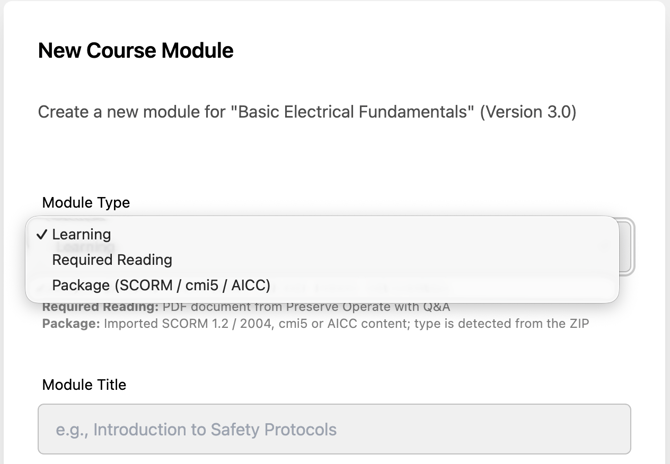
- Set Module Type to Package (SCORM / cmi5 / AICC).
From here, add one package (Step 2) or several at once (Step 3).
Step 2: Add the package
- Module Title is optional. Leave it blank to use the title from the package.
- Under Package File (ZIP), click Choose File and select the ZIP.
- Add a Description if you'd like one.
- Click Upload & Create Module.
Then skip to Step 4.
💡 If the ZIP isn't accepted, check what's inside it. A SCORM package contains an imsmanifest.xml file, a cmi5 package contains a cmi5.xml or tincan.xml file, and an AICC package contains .au and .crs files.
Step 3: Add several packages at once
Use this when a course is made of several packages, for example one ZIP per chapter.
- In the Add Module window, click Bulk Import Packages. The Import Package Modules page opens for that course and version.
- Click Add files to choose the ZIP files, or drag them onto the Package ZIPs area. You can also drag in a whole folder of ZIPs.
- Check the list. Each file shows its size, and the count at the top shows how many are ready. Click Add files again to add more, Remove to take one off, or Clear all to start over.
- Click Import Packages.
💡 Add the files in the order learners should take them. Modules are created in the order you added the files, not in alphabetical order.
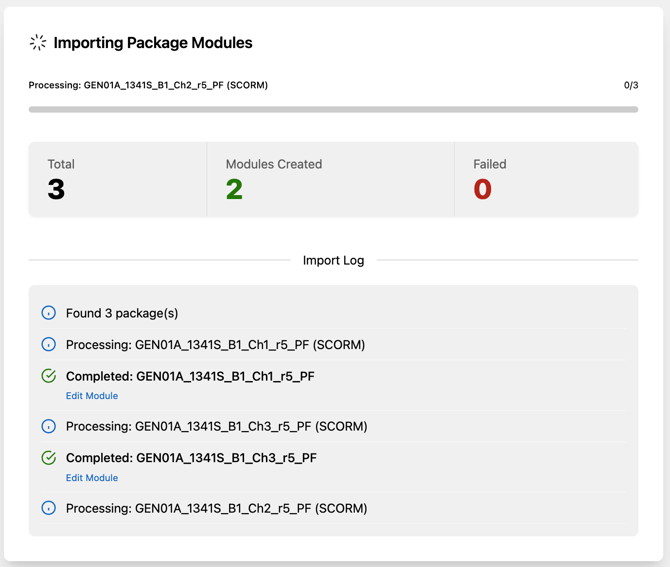
The packages upload one at a time, and a progress bar shows which file is uploading (for example, "Uploading 1 of 3") and how far along it is.
When the uploads finish, the Importing Package Modules page shows Total, Modules Created, and Failed counts, plus an Import Log that lists each package as it's processed. When a package finishes, you can Import More, or Return to Editing the course.
A few things to know:
- Only ZIP files are imported. If you drag in a folder with other files in it, those are skipped.
- Each ZIP should be a complete SCORM 1.2, SCORM 2004, cmi5, or AICC package.
- Uploads larger than 2GB are supported.
Step 4: Publish
Once the package module shows Ready, preview the course and publish the version as you would any other course (see Creating a Course). Learners will see the package as a launch card in the course.
If a package doesn't work
After a package uploads, Preserve unpacks and processes it in the background so it's ready to launch. If something goes wrong during that step, for example the module never shows Ready or the package won't open when you launch it, open the module and reprocess the package. Preserve takes the same ZIP and processes it again, so you don't need to upload it a second time.
If reprocessing doesn't fix it, check the ZIP itself (see the tip in Step 1) and upload a new copy.
Updating a package
To change a package in a published course, create a new draft version of the course, update the package module there, and publish the new version. The published version stays live for learners until you do.
A note on package limitations
- Scoring comes from the package. The passing score and the number of retries are set inside the package when it's built, not in Preserve.
- If the exit link or back button acts oddly after a failed quiz inside the package, launch the package again from the course to start a new attempt.
A note on package limitations
- Package questions stay in the package. Preserve can't pull quiz questions out of a package. If you want a Preserve final quiz on the course, add one with your own questions (see Configuring a Course Final Quiz).
- Scoring comes from the package. The passing score and the number of retries are set inside the package when it's built, not in Preserve.
- If the exit link or back button acts oddly after a failed quiz inside the package, launch the package again from the course to start a new attempt.