
If your organization already has training content built in tools like Articulate Storyline or Adobe Captivate, you can import it directly into Preserve as a SCORM or cmi5 package — no rebuilding required.
Preserve supports SCORM 1.2, SCORM 2004, and cmi5 packages. The course type is auto-detected from the package manifest.
Step 1: Create a new course
💡 Check the site selector at the top of the page first. If you have a site selected, the imported course is locked to that site: only learners there will see it, and it can only be edited from inside that site. To import a course for the whole organization, switch to the **Global** view before you start.
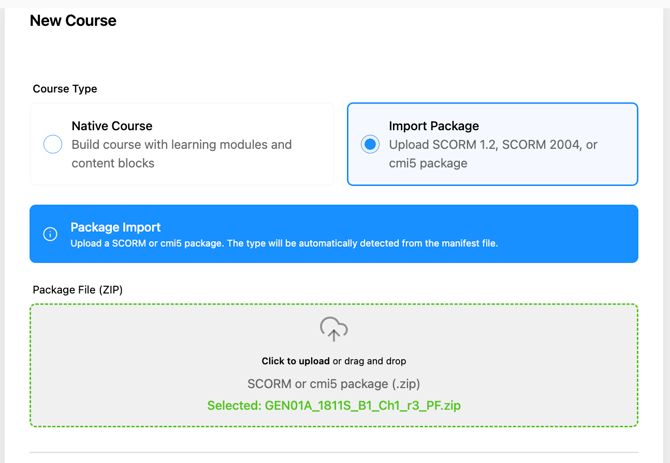
Navigate to Learning → Courses and click + New Course. Select Import Package as the course type.
Step 2: Upload the package
You'll see a package upload area. Drag and drop your ZIP file, or click to browse and select it. The package type is automatically detected from the manifest file inside the ZIP.
Step 3: Fill in course details
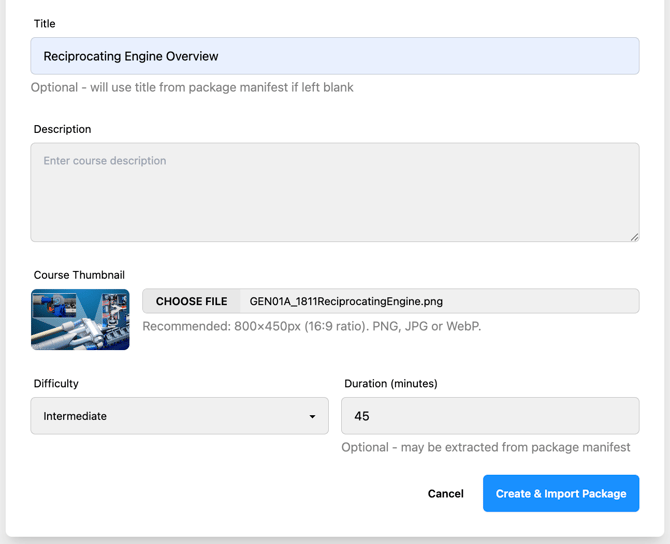
After the package uploads, complete the course details:
- Title (required)
- Description
- Difficulty
- Duration (optional — may be extracted automatically from the package manifest)
- Thumbnail
Step 4: Preview the course
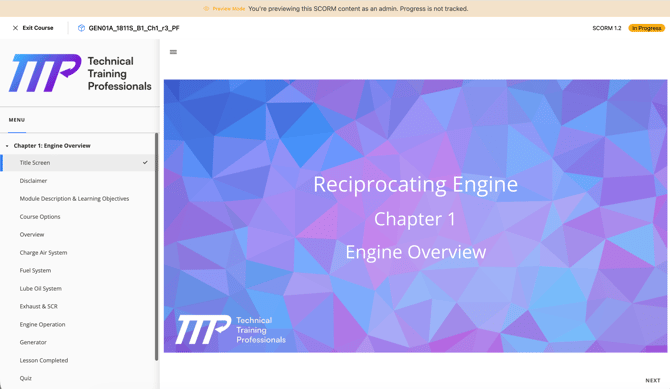
Click Preview to see how the course will appear to learners. You'll enter Preview Mode — a banner confirms progress is not tracked during preview. Click Launch Course to open the SCORM or cmi5 player and work through it.
💡 If you click Back while in SCORM preview, you may be taken to the platform dashboard rather than back to the course edit page. Use the browser's navigation carefully in preview mode.
Step 5: Publish
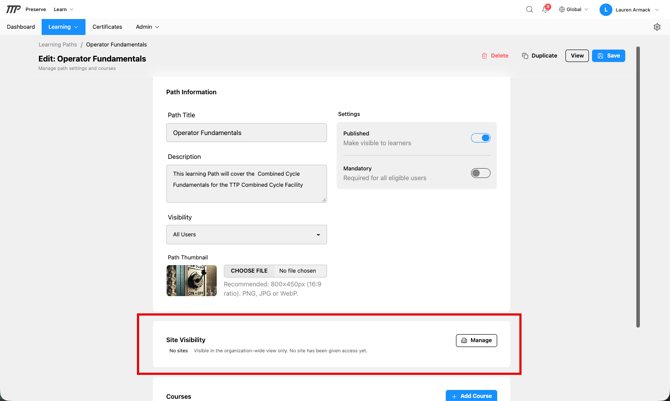
When you're satisfied, click Publish to make the course available to learners. Once published, learners in the Global view can find and enroll in it right away. Learners at a specific site will only see it once it's made available at their site. To do that, open the course's edit page, find Site Visibility, and click Manage (see Creating a Course for the full steps).
Updating a SCORM or cmi5 course
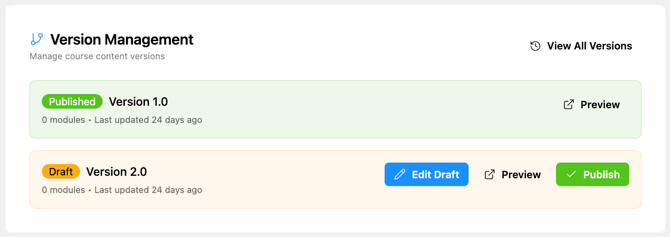
To update an imported course, go to the course edit page and click Create Draft to Update SCORM (or equivalent for cmi5). This creates a new draft version where you can re-upload an updated package or change course settings. Your published version stays live until you publish the new draft.
A note on SCORM limitations
SCORM is a widely-used but older standard. A few things to keep in mind:
- No Preserve quiz builder for SCORM courses. SCORM courses handle all assessments internally within the package — Preserve's final quiz builder (passing score, question pool, cooldown, etc.) is not available for imported courses. If you need a Preserve-managed quiz, use a native course instead.
- The passing score and retry behavior for SCORM courses is determined by the SCORM package itself, not by Preserve settings.
- If the exit link or back button behaves unexpectedly after a failed quiz, try re-launching the course from the course detail page to start a new attempt.