Moving to Preserve from paper records or another system? Grant credit for the courses and qualifications your learners already finished, so their training history is complete from day one. You can credit many learners at once.
- Courses: Learn Admins can grant course credit.
- Qualifications: Platform Admins can grant credit for a whole qualification. This also completes its required courses and issues the certificate.
Open Grant Credit
In Learn, open the Admin menu and click Grant Credit. Platform Admins can also go to Settings, the Organization tab, and click Grant on the Qualification Credit card.
Choose the Courses tab or the Qualifications tab, depending on what you're crediting.
Step 1: Add learners
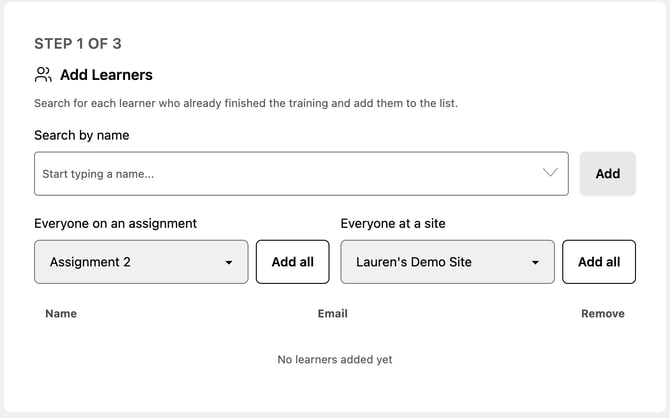
Under Add Learners, build the list of people to credit. You can mix these:
- Search by name: start typing a name, then click Add.
- Everyone on an assignment: choose an assignment, then click Add all.
- Everyone at a site: choose a site, then click Add all.
Each person appears in the list below. Click Remove to take someone off.
Step 2: Add courses or qualifications
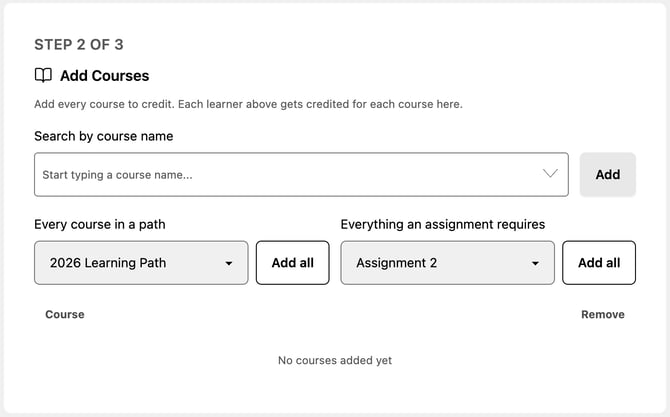
Every learner in your list is credited with every item you add here.
On the Courses tab, under Add Courses:
- Search by course name: start typing, then click Add.
- Every course in a path: choose a learning path, then click Add all.
- Everything an assignment requires: choose an assignment, then click Add all.
On the Qualifications tab, under Add Qualifications, search for each qualification and click Add. Learners also get credit for the published courses in its required training.
Step 3: Review and grant
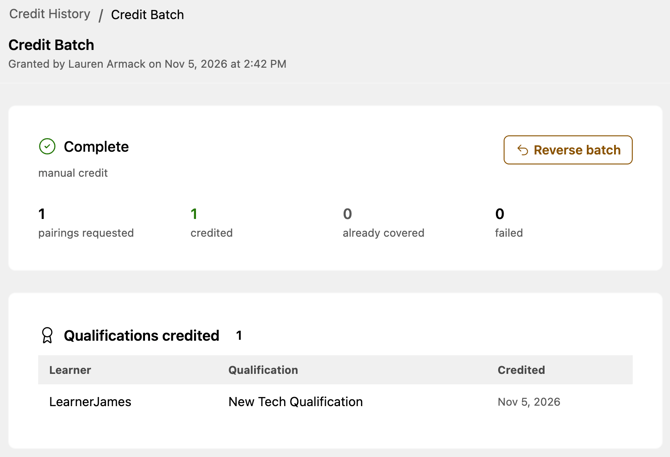
Under Review, check the totals. Preserve only credits what isn't already complete, so no one is credited twice. Anything a learner already had shows as already covered in the batch.
Add a Note if you'd like, such as "Credited from LMS export, March 2026." The note is saved on every completion the grant creates.
Click Grant Credit.
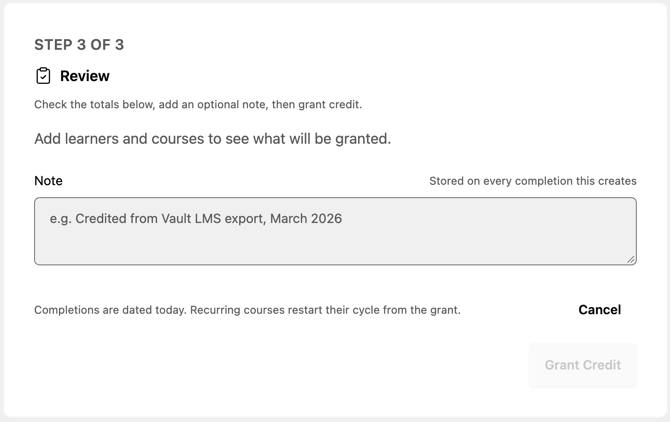
💡 Credit is dated the day you grant it. Qualifications are completed and certificates are issued that day, and recurring courses restart their cycle from the grant date.
See or reverse past credits
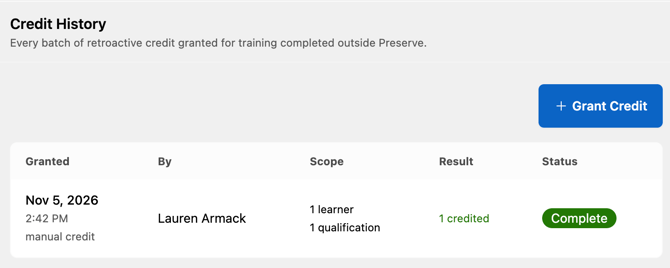
Every grant is saved as a batch. To find one, open the Admin menu and click Credit History, or click Credit History at the top right of Grant Credit.
The list shows when each batch was granted, who granted it, how many learners and items it covered, and the result. Click a batch to open it and see each learner and what they were credited.
Granted something by mistake? Open the batch and click Reverse batch. You can reverse a batch at any time, not just right after you grant it.