
When you need someone in specific training now, or the training is private, you can enroll them yourself. You can pick people one by one, or add everyone at a site, in a position, or in a department in one step.
💡 Managers and Learn Admins can enroll users. See Role Types.
Step 1: Open Enroll Users
In Learn, open the Admin menu and click Learning Management. Go to the Enrollments tab and click Enroll Users.
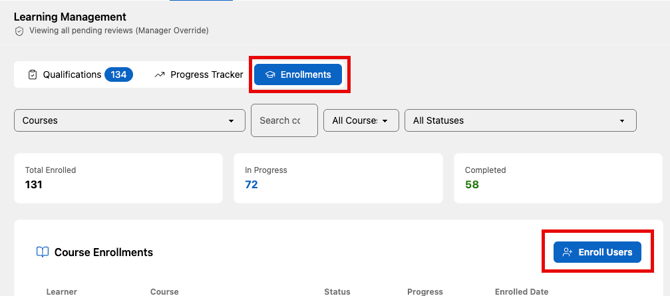
Step 2: Choose what to enroll them in
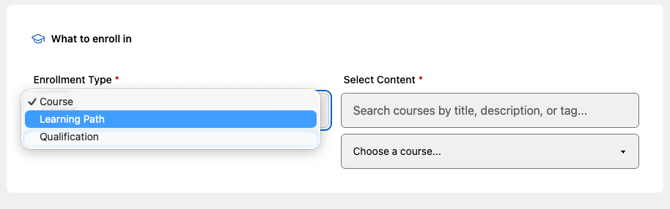
Under What to enroll in:
- Set Enrollment Type to Course, Learning Path, or Qualification.
- Under Select Content, start typing to narrow the list. You can search by title, description, or tag.
- Choose the course, learning path, or qualification from the menu.
Step 3: Choose who to enroll
Under Who to enroll, build your list. You can mix any of these, and the count at the top right shows how many people you've selected.
- Everyone at a site: choose a site, then click Add all.
- Everyone in a position or department: choose a Position, a Department, or both, then click Add all. Choose both to add only the people who match both.
- One person at a time: under Search by name, start typing, then check the box next to each person.
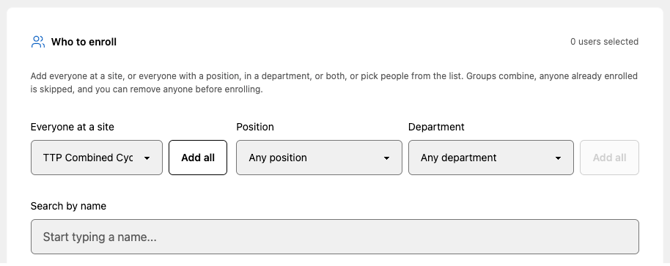
💡 Position and Department only appear once your organization has added at least one of each. See Setting Up Positions and Departments.
Step 4: Check your list
Add all checks everyone in that group in the user list. Everyone you've chosen appears under Selected users.
- To take someone off, uncheck them or click the X next to their name.
- To start over, click Clear all.
- Anyone already enrolled is skipped, so no one is enrolled twice.
Step 5: Enroll
Click Enroll Selected Users. The training appears on each person's Dashboard.
💡 Preserve doesn't email people when you enroll them yet, so let them know it's there.
Good to know
- Private training: learners can't enroll themselves or request access in courses or learning paths marked as Private, so enrolling them here is how they get in.
- Mandatory training: marking training as Mandatory doesn't enroll anyone, it's just a flag. Use this page, or assignments, to get people into it.
- Unenrolling: only Learn Admins can unenroll someone.