
When building a Daily Round, you'll choose from nine block types to capture exactly the kind of data your team needs. Here's what each one does and when to use it.
Value Block
The core of most Rounds. Use this when a technician needs to record a number from an instrument or gauge — pressure, temperature, flow rate, and so on. You can set a low and high safe range for each value; if a technician logs something outside that range, Preserve automatically flags it and sends an email alert to the users you designated as Alert Users on the round. This out-of-bounds detection is one of the most powerful features in Rounds — use it anywhere a number matters.

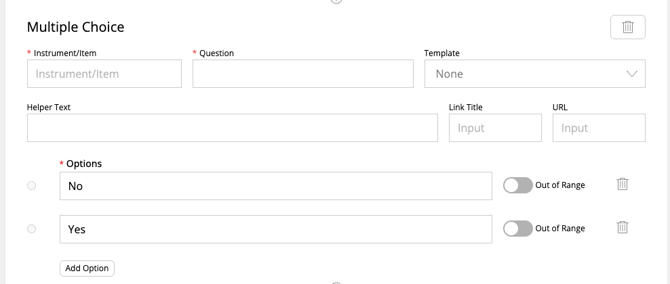
Multiple Choice Block
Use this for status checks with predefined answers — "On / Off / Standby," "Normal / Abnormal," and similar. You can flag specific answer options as "out of range," which triggers the same automatic alert behavior as a Value Block. Great for quick visual checks that don't require a precise number.
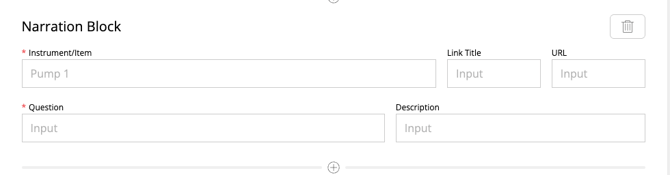
Narration Block
A free-text field for open-ended input, sometimes referred to as a "short answer" block. Use this for observations, notes, or anything that doesn't fit a fixed format — a technician describing something unusual they noticed on the route, for example.
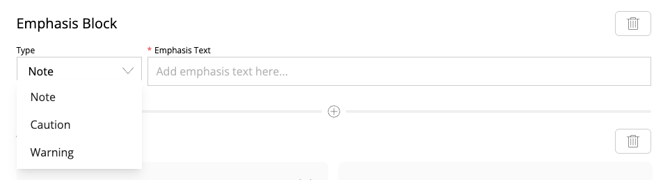
Emphasis Block
Use this to call out safety-critical information or warnings. Like a Text Block, technicians read this but don't interact with it — there's no input required. Use it sparingly so it stands out when it really matters.
Header Block
A simple section organization tool. Use this to break a long round into clearly labeled sections, making it easier for technicians to navigate and track their progress through a longer route.

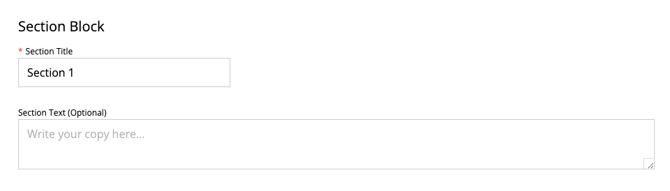
Section Block
A grouping container for related items. Use this when you want to visually bundle a set of round items together under one heading, distinct from a Header Block's simpler labeling role.
Annotation Block
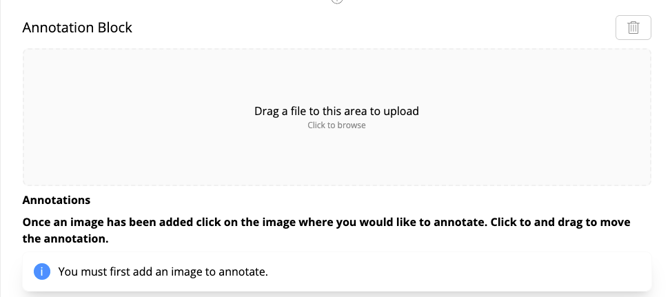
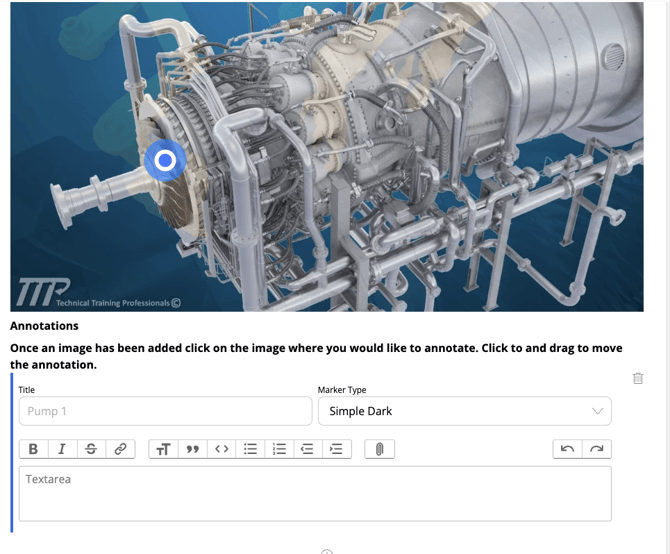
Upload an image — a P&ID or equipment diagram, for example — and place clickable markers directly on it to indicate specific reading locations or points of interest. Useful when a route involves multiple gauges or check points on the same piece of equipment, and you want to visually show the technician exactly where to look.
Video Block
Embed instructional video directly into a round item. Useful for routes with a visual or physical technique that's easier to show than describe — how to properly read a particular gauge, for instance.
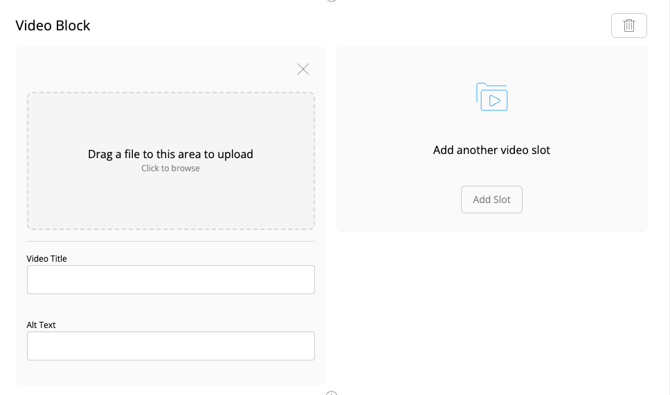
Table Block
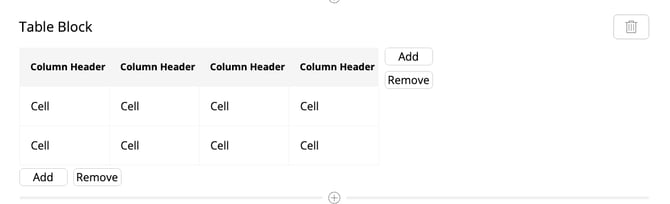
Use this when you need structured, multi-field data entry in a single item — for example, logging several related readings together in a consistent row-and-column format rather than as separate standalone items.
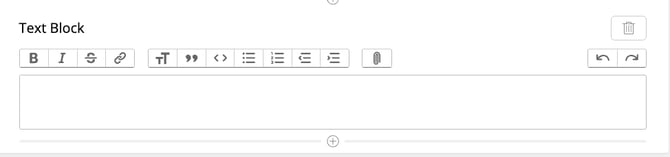
Text Block
Use this when you need rich text formatted information within the Round.
Related Articles