Ops 360 pages are custom pages for your site, such as a system overview, a training hub, or a shift checklist. You group them into categories, and each category decides whether its pages appear on the Home dashboard.
The Ops 360 Pages screen
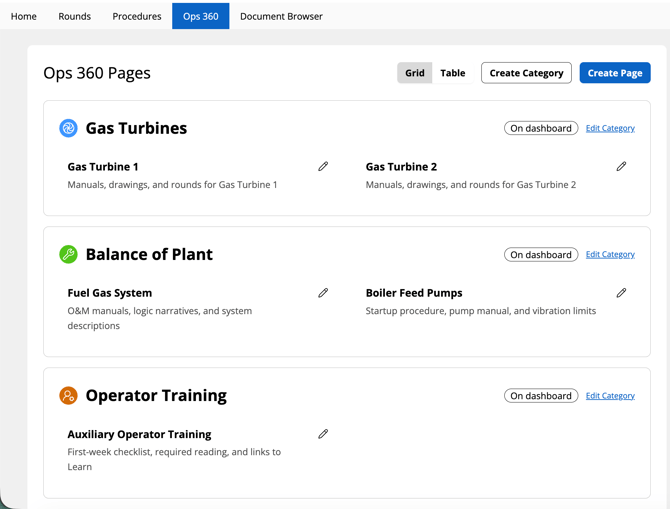
Click Ops 360 in the navigation (or View All in the Ops 360 section of Home) to open Ops 360 Pages. Use the toggle at the top right to switch views:
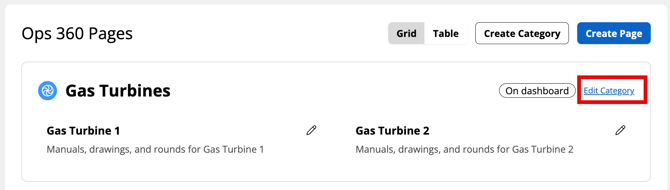
- Grid: pages grouped under each category, with the category's icon and name. A category on the dashboard shows an On dashboard label. Click Edit Category to change a category, or the pencil on a page to edit that page.
- Table: every page in one list with its Category, description, author, and last modified date. Use Edit, View, or the trash can in the Actions column.
Before you begin: pick the right site
Check the site selector in the top bar. It decides where your categories and pages are created:
- A site selected: categories and pages belong to that site. Only site categories can be shown on that site's Home dashboard.
- Global: categories and pages belong to your whole organization. They're only available while the site selector is set to Global: they don't appear on a site's Ops 360 Pages screen, and they can't be shown on any dashboard. To open them, switch the site selector to Global, then open Ops 360 Pages.
Step 1: Create a category
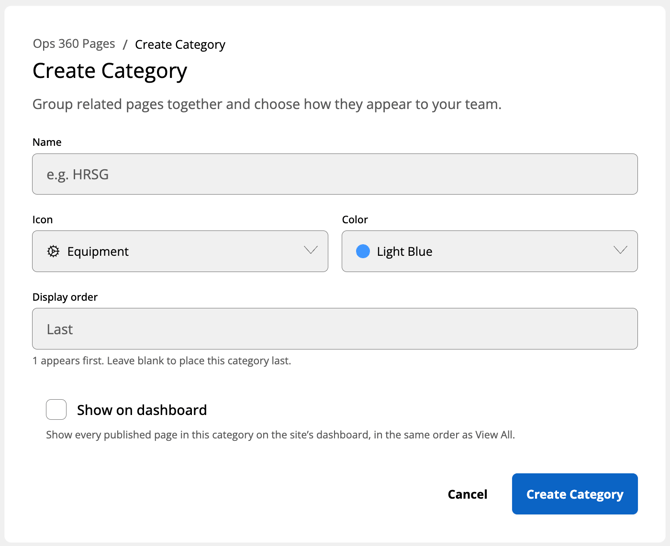
- On Ops 360 Pages, click Create Category.
- Fill in:
- Name: for example, "HRSG"
- Icon and Color: how the category looks on the page and the dashboard
- Display order: 1 appears first. Leave it blank to place the category last.
- Show on dashboard: check this to show every published page in the category on your site's Home dashboard, in the same order as on Ops 360 Pages
- Click Create Category.
Step 2: Create a page
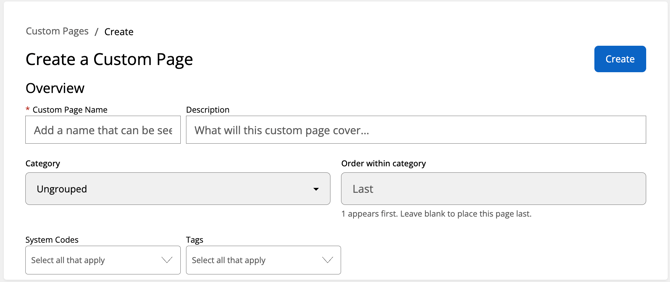
- On Ops 360 Pages, click Create Page (or Create Page in the Ops 360 section of Home).
- Fill in:
- Custom Page Name (required) and Description
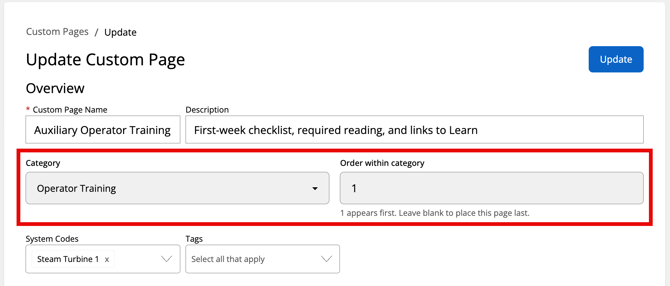
- Category: choose a category, or leave it as Ungrouped
- Order within category: 1 appears first. Leave it blank to place the page last.
- System Codes and Tags: so the page can be found in search
- Click Create.
Step 3: Build and publish the page
The page editor opens with your first version ready. Click + between blocks to add content, such as sections, text, action lists, documents, and images. Your work saves automatically.
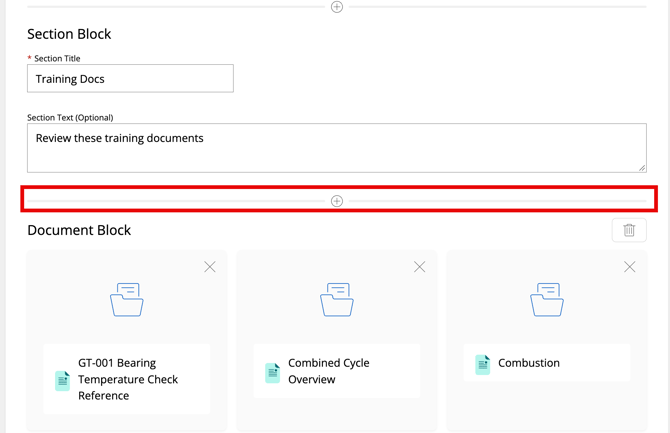
When you're ready, click Preview to check the page, then Publish. Only published pages appear on the dashboard.
To change a published page's content later, open the page and click Create New Version. The new version copies the current one, and your published page stays live until you publish the new version.
Moving a page to a different category
You don't need a new version to move a page or change its order.
- On Ops 360 Pages, click the pencil (Grid) or Edit (Table) on the page.
- On Update Custom Page, change the Category or Order within category.
- Click Update.
Editing or deleting a category
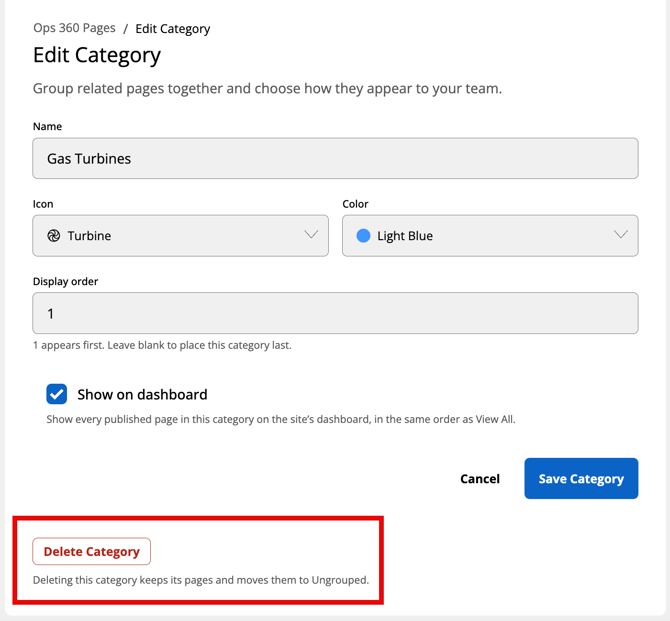
Click Edit Category next to the category in Grid view. Change any field, then click Save Category.
To remove a category, click Delete Category. Its pages aren't deleted. They move to Ungrouped.