A qualification is a certification program. It groups everything someone needs to prove they're ready for a role (training, hands-on time, practical tasks, and exams) into phases. When a learner finishes every phase and the review board approves, Preserve issues a certificate automatically.
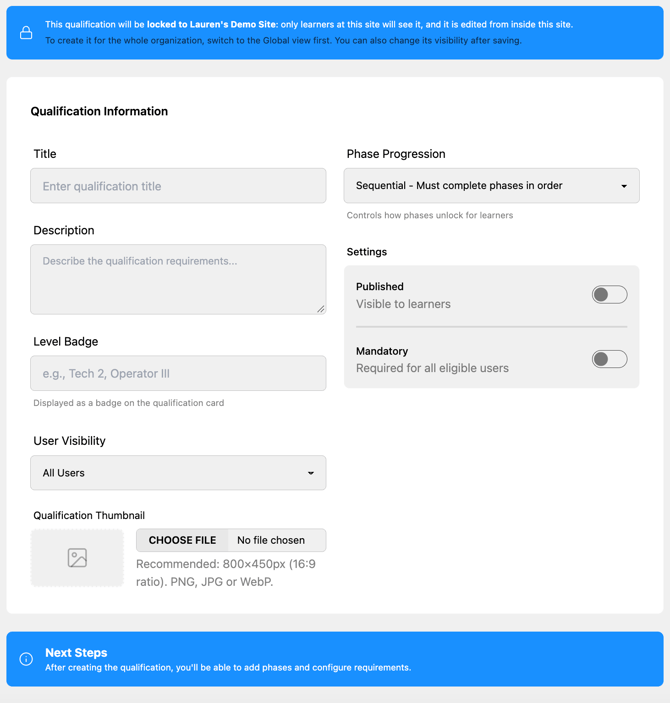
💡 Check the site selector at the top of the page before you start. A qualification created with a site selected is locked to that site. To create one for the whole organization, switch to Global first.
Step 1: Add the qualification details
- Click Learning → Qualifications, then click + New Qualification.
- Fill in the details:
- Title (required)
- Description: what the qualification covers and who it's for
- Level Badge: a short label shown on the qualification, such as "Tech 2" or "Operator III"
- Phase Progression: Sequential (phases unlock in order) or As Completed (phases can be done in any order)
- Visibility:
- All Users: everyone can find it. Learners click Request Access, and an admin approves the request.
-
-
- Private: learners can't find it or request it; an admin enrolls them
- Mandatory: marks the qualification as required
- Thumbnail: the card image
-
- Leave Published off while you build.
- Click Create Qualification.
Step 2: Add phases
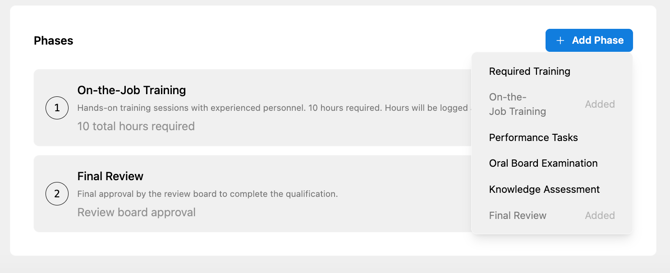
After you create the qualification, a Phases section appears. Click + Add Phase and choose a phase type. You can use any combination, but each type only once.
| Phase | What the learner does | What you set up |
|---|---|---|
| Required Training | Completes courses and learning paths | Click the pencil, then + Add Requirements and pick courses or learning paths. Anything the learner already finished counts right away. |
| On-the-Job Training | Logs time shadowing an experienced person, who confirms each session | Required hours, and optionally a required number of sessions |
| Performance Tasks | Performs practical tasks and submits them for sign-off | Click + Add Task for each task: title, description, whether it's required, and whether the learner must attach a file |
| Oral Board Examination | Answers questions asked in person by a proctor | Passing % (default 70%), optional time limit, instructions for the learner, guidance for the proctor, and each question with its points and grading rubric |
| Knowledge Assessment | Takes a quiz and submits it for review | Passing % (default 70%), optional time limit, instructions, and questions (Open Ended, Multiple Choice, or True/False) with points and an optional hint and rubric |
| Final Review | Submits the finished qualification for approval | The review board: click + Add Member for each person who must approve |
A few things to know while setting up phases:
- Save as you go. Tasks and questions save when you click Add Task or Add Question. Changes to settings such as instructions or passing % need the Save button at the top.
- Use the arrows to reorder phases. With Sequential progression, learners go through phases in this order.
- Knowledge Assessments need questions. You can't publish a qualification whose Knowledge Assessment has no questions.
- Open Ended questions are graded by a person. Add a grading rubric so reviewers score consistently.
- Review board members must have a Learn role of Supervisor, Manager, or Learn Admin. Nobody can approve their own qualification, so don't rely on a single member who might also be a learner.
Step 3: Choose which sites can see it
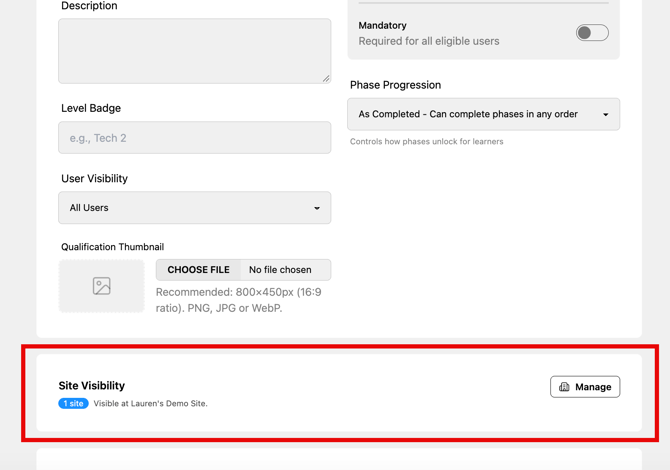
On the qualification edit page, find Site Visibility and click Manage. Choose All sites, Selected sites, or Locked to one site, then click Save visibility.
Making a qualification available at a site also makes its courses and learning paths available there, so learners can complete every phase. See Course, Learning Path, and Qualification Site Visibility for details.
Step 4: Publish
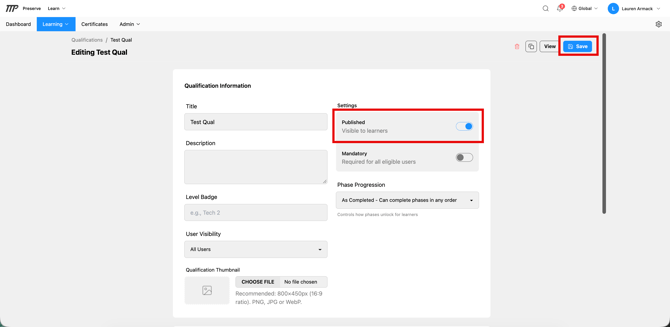
When every phase is set up, turn Published on and click Save. Learners who can see the qualification can now request access, or you can enroll them yourself.
💡 To change a published qualification later, open it from Learning → Qualifications and use the edit options at the top. You can also Duplicate it as a starting point for a similar qualification.