
Before you begin
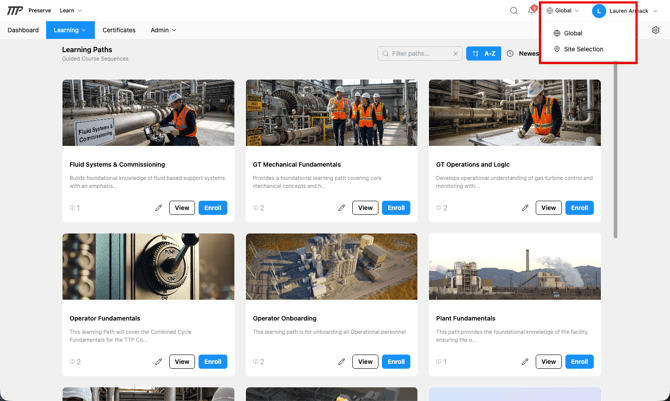
Check the site selector in the top bar before you start. Where you create the learning path decides who can see it:
- In the Global view (the selector shows "Global"): the path belongs to the whole organization and starts out visible in the Global view only. You choose which sites can see it in Step 6.
- With a site selected: the path is locked to that site. Only learners at that site will see it, and it can only be edited from inside that site.
To create a path for the whole organization, switch to the Global view first.
Step 1: Start a new Learning Path
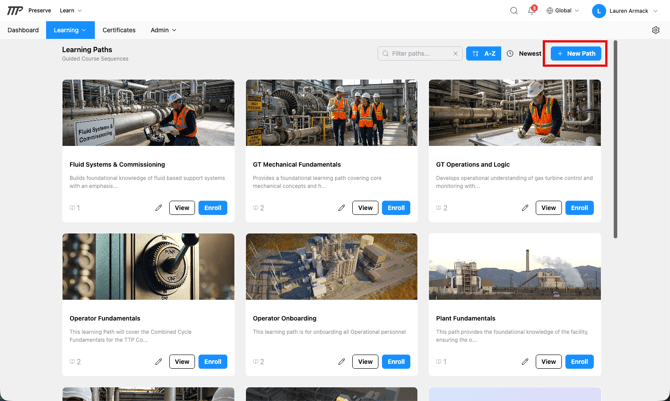
From the navigation, click Learning → Learning Paths, then click + New Path.
Step 2: Fill in the path details
You'll see the Path Information section with the following fields:
- Path Title: what learners see on the path card (required)
- Description: describe what learners will achieve by completing this path
- User Visibility: controls who can see and enroll in this path:
- All Users: anyone with Learn access can see and self-enroll
- Restricted: learners must request access; you approve or deny
- Private: hidden from learners unless they're already enrolled; Managers and Learn Admins can still see it. Learners can't enroll themselves or request access, so an admin enrolls them.
- Site visibility comes first: learners only see the path if it's visible at a site where they have a role (see Step 6). The Visibility setting above then applies to those learners.
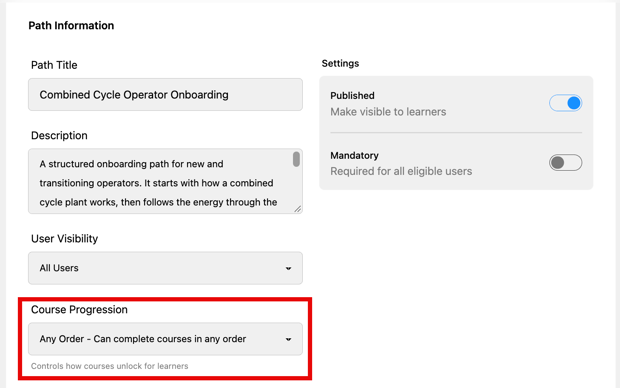
- Course Progression: controls how courses unlock for learners. Any Order lets learners start courses in any order. Sequential unlocks each course after the one before it is finished; until then it shows as Locked.
- Thumbnail: the path card image (same specifications as course thumbnails: 800×450px, 16:9 ratio, PNG/JPG/WebP)
💡 You'll add courses after saving, the thumbnail field note reminds you of this: "After creating the path, you can add courses to it."
💡 Every path, including existing ones, starts as Any Order. If learners must take the courses in order, open the path and switch Course Progression to Sequential.
Click Save Path when done.
Step 3: Configure settings
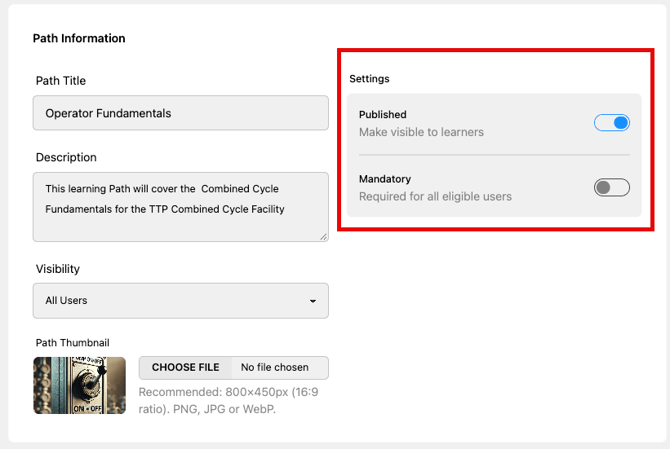
After saving, you'll see a Settings section with:
- Mandatory toggle: marks the path as mandatory. Learners see a Mandatory badge, and reports compare mandatory and optional completions. It doesn't enroll anyone automatically.
- Published toggle, controls whether learners can see and enroll in the path
Leave Published off while you're still building.
Step 4: Add courses
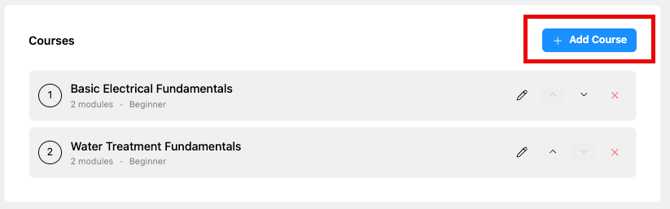
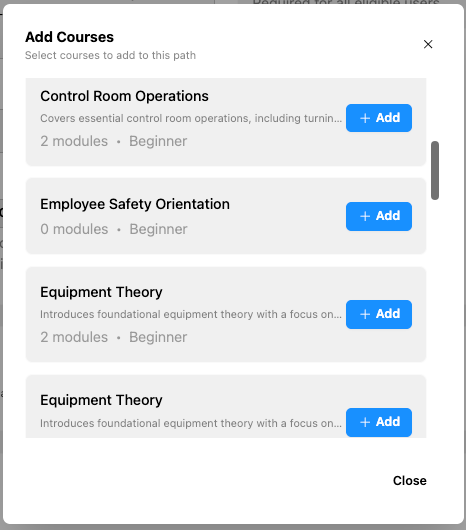
In the Courses section, click + Add Course. The list shows the courses you can use in this path, both draft and published. If you have a site selected, you'll only see courses that are visible at that site. Click + Add next to each course you want to include.
Once courses are added you can:
- Reorder them using the up and down arrows on the right of each course row, the sequence you set is the display order learners see
- Edit a course using the pencil icon, which takes you into the course editor
- Remove a course using the red X
💡 Learners can complete courses in any order within the path, the sequence you set is a suggested order, not a locked one.
⚠️ Courses locked to one site: If a course is locked to a single site and your path is visible at other sites, Preserve won't let you add it. You'll see a message starting "Can't add [course name]". Ask an organization-level Learn Admin to make the course available to the other sites first.
Step 5: Publish
You must have at least one published course in the path before you can publish it. When you're ready, toggle Published on in the Settings section, or use the Publish option from the path options.
Once published, the path is live. Learners in the organization-wide (Global) view can find and enroll in it right away. Learners who work at a specific site will only see it once it's visible at their site, see Step 6.
If a course in the path is locked to one site but the path is visible somewhere else, publishing is blocked with a message starting "Can't publish". Ask an organization-level Learn Admin to make that course available to the other sites, then publish again.
Step 6: Choose which sites can see the path
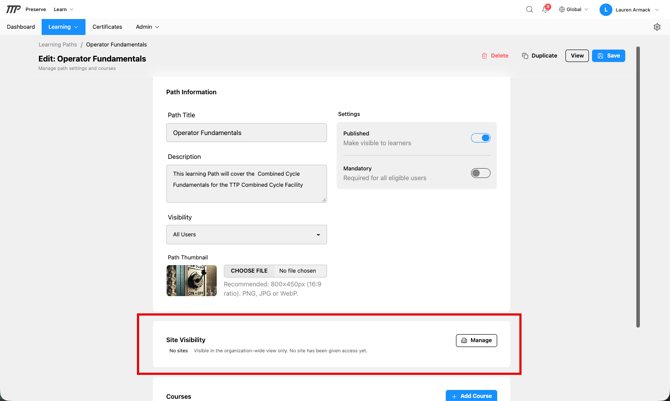
On the path edit page, find the Site Visibility section. It shows where the path is visible right now. A new path created in the Global view shows No sites, which means it's only visible in the organization-wide view.
- Click Manage. The Site Visibility window opens.
- Choose one option:
- All sites: every site now and in the future
- Selected sites: only the sites you check in the list
- Locked to one site: one site only. That site's Learn Admins can edit it, and no other site can include it.
- If you chose Selected sites or Locked to one site, check the site or sites in the list. A note under the list confirms your choice, for example "Visible at 2 sites."
- Click Save visibility.
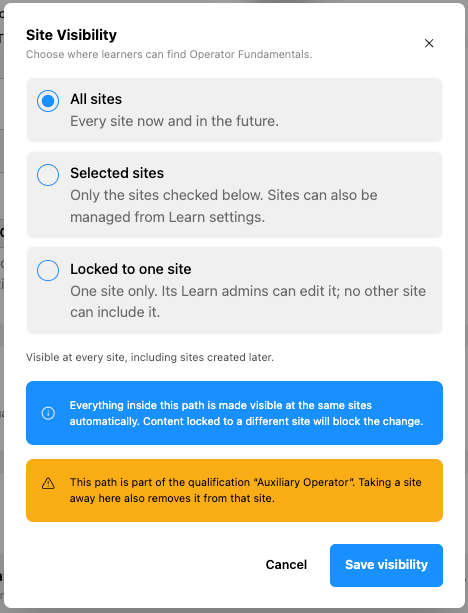
The courses come along automatically. Everything inside the path is made visible at the same sites, so you don't need to set each course separately. If one of the courses is locked to a different site, Preserve won't let you make the change.
⚠️ If the path is part of a qualification, the window shows a yellow warning naming it. Taking a site away from the path also removes that qualification from that site.
💡 Only organization-level Learn Admins can change site visibility. If you're a Learn Admin at one site, you'll see the Site Visibility section but can't change it.
Hiding a path from a site never deletes anything. Learners' progress and completions are kept, and progress picks up again if the path is made visible there again. Removing a path from a site does not remove its courses; they stay visible there on their own.
You can also set visibility for many paths at once from Learn Settings (the gear icon at the right end of the Learn navigation).
Other options
From the path edit page, you can also:
-
- Delete the learning path
- Duplicate it to use as a starting point for a similar path. If you duplicate a path while a site is selected, the copy is locked to that site.
- View it as a learner would see it