
Native courses are built directly inside Preserve using the module and block editor. This guide walks you through creating one from scratch.
Before you begin
Navigate to Learning → Courses and click + New Course.
- In the Global view (the selector shows "Global"): the course belongs to the whole organization and starts out visible in the Global view only. You choose which sites can see it in Step 7.
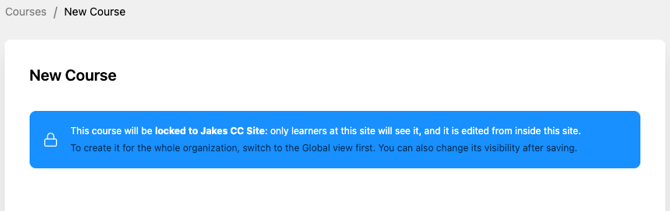
- With a site selected: the course is locked to that site. Only learners at that site will see it, and it can only be edited from inside that site.
💡 If you have a site selected, the new course form shows a blue notice: "This course will be locked to [Site]: only learners at this site will see it, and it is edited from inside this site." To create the course for the whole organization instead, switch to the Global view first.
Step 1: Set up the course
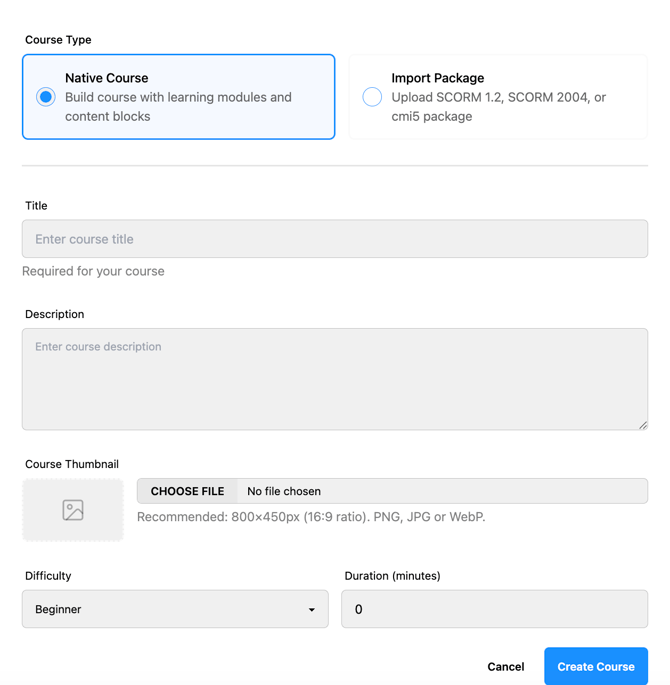
Select Native Course as the course type, then fill in the course details:
- Title — what learners will see on the course card (required)
- Description — what this course covers
- Difficulty — Beginner, Intermediate, or Advanced
- Duration — estimated completion time in minutes
- Thumbnail — the course card image (recommended: 800×450px, 16:9 ratio, PNG/JPG/WebP)
Click Save to create the course. You'll be taken to the course edit page, where the real building happens.
Step 2: Manage versions
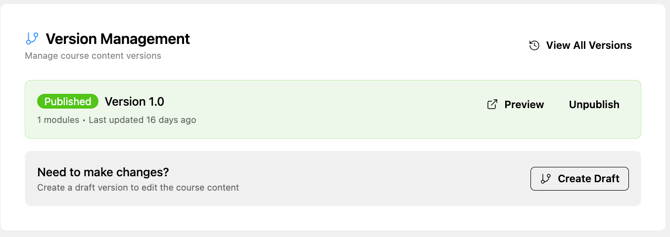
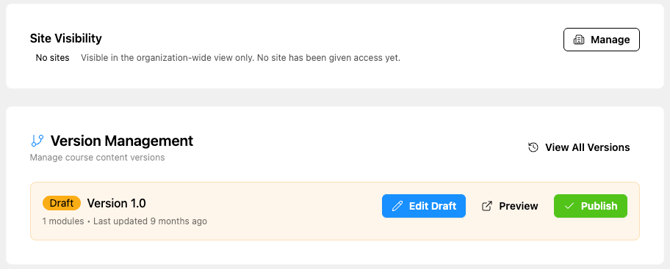
Every course uses a Draft → Published version system. When you first create a course, it starts as a Draft and stays in Draft until you publish it. Under Version Management, you'll see your current draft and options to Edit, Preview, or Publish it.
This means your course is invisible to learners until you're ready — you can build and refine it at your own pace.
Step 3: Add modules
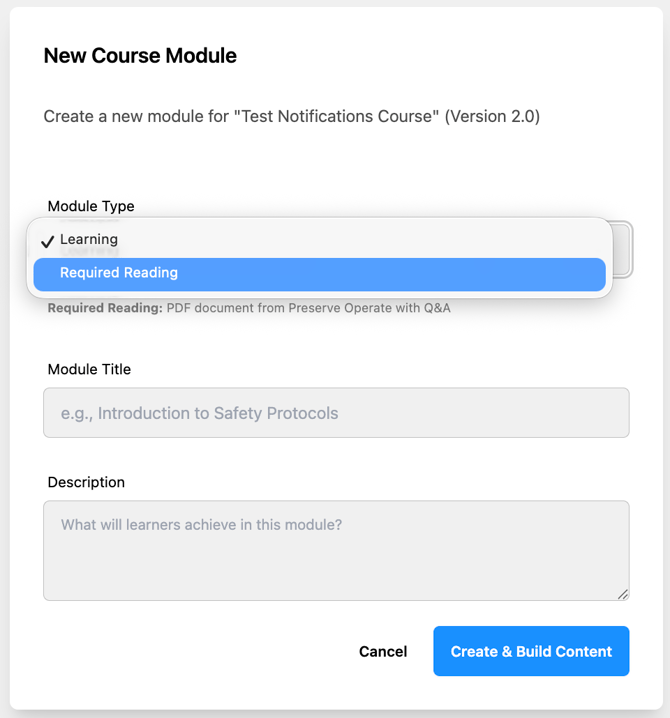
Under Learning Modules, click + Add Module. Give the module a title and description, then choose the module type:
- Learning — standard content built with content blocks (see Step 4)
- Required Reading — links a PDF document from Preserve Operate, with comprehension questions (see Creating a Required Reading Module)
Click Create & Build Content to open the block editor.
Step 4: Build module content
Inside the block editor, click + Add Block to start adding content. You can add as many blocks as you need and reorder them at any time by dragging.
See Course Content Block Types for a description of each block option.
Once you're done with the module, click Save & Finish. Repeat Steps 3–4 for each module in the course.
Step 5: Preview
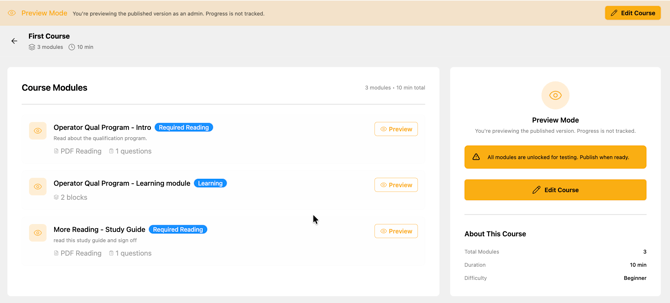
Use the View button on any module or the Preview link under Version Management to see exactly what learners will see. Preview mode shows a banner indicating you're previewing as an admin and that progress is not tracked.
Step 6: Publish
When your modules are complete and you're happy with the preview, go to Version Management and click the green Publish button (or Publish Now if prompted). A confirmation window appears, click Publish Version to make the course live.
Once published, the course is live. Learners in the organization-wide (Global) view can find and enroll in it right away. Learners who work at a specific site will only see it once it's visible at their site, see Step 7.
💡 Updating a published course: Create a new Draft version from the Version Management section. Your published version stays live and accessible to enrolled learners while you work on the draft. When you publish the new version, the old one is automatically archived.
Step 7: Choose which sites can see the course
On the course edit page, find the Site Visibility section (below the course thumbnail). It shows where the course is visible right now. A new course created in the Global view shows No sites, which means it's only visible in the organization-wide view.
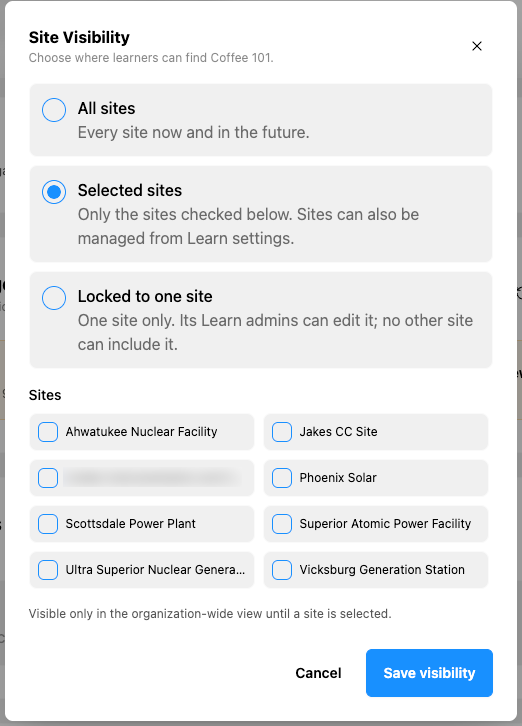
- Click Manage. The Site Visibility window opens.
- Choose one option:
- All sites: every site now and in the future
- Selected sites: only the sites you check in the list
- Locked to one site: one site only. That site's Learn Admins can edit it, and no other site can include it.
- If you chose Selected sites or Locked to one site, check the site or sites in the list. A note under the list confirms your choice, for example "Visible at 2 sites."
- Click Save visibility.
⚠️ If the course is part of a learning path or qualification, the window shows a yellow warning naming them. Taking a site away from the course also removes those learning paths and qualifications from that site, because learners can't complete them without the course.
💡 Only organization-level Learn Admins can change site visibility. If you're a Learn Admin at one site, you'll see the Site Visibility section but can't change it.
Hiding a course from a site never deletes anything. Learners' progress, completions, and certificates are kept, and progress picks up again if the course is made visible there again.
You can also set visibility for many courses at once from Learn Settings (the gear icon at the right end of the Learn navigation).