
When building a module inside a native course, you add content using blocks. Each block serves a different purpose. Here's what each one does and when to use it.
Text Block
Displays written content — explanations, instructions, context, safety callouts, or any prose that doesn't require learner interaction. Use this as the backbone of most modules, surrounding your images, videos, and questions with clear written guidance.
Section Header Block
A visual divider with a heading that breaks a long module into clearly labeled sections. Use this when a single module covers multiple distinct topics — it helps learners navigate and sets expectations for what's coming next.
Image Block
Displays an uploaded image with an optional caption. Use this for equipment photos, P&ID excerpts, diagrams, safety signage, or any visual that supports the surrounding text. You can also remove the image later while keeping the block in place.
Video Block
Embeds a video directly in the module. You can upload a video file (MP4, WebM, or MOV) or paste a YouTube or Vimeo URL. Use this for equipment walkthroughs, recorded demonstrations, safety videos, or any technique that's easier to show than describe.
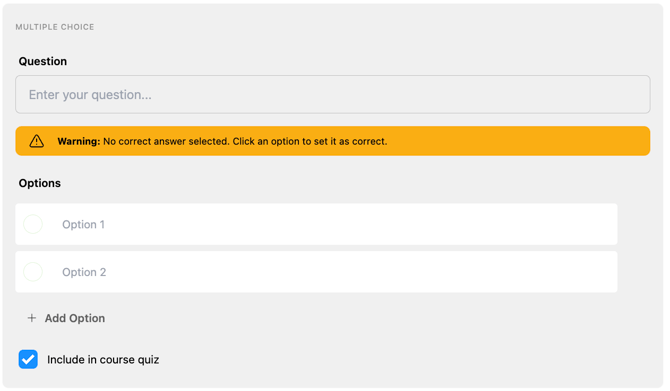
Multiple Choice Question
Presents a question with multiple answer options. You designate the correct answer, and learners select from the choices. Learners get up to 2 attempts — after 2 wrong answers, the correct answer is revealed and they can continue.
Key settings:
- Include in course quiz — checking this makes the question eligible to appear in the course's final quiz (in addition to appearing in the module itself)
- Points value — how many points this question is worth in the quiz
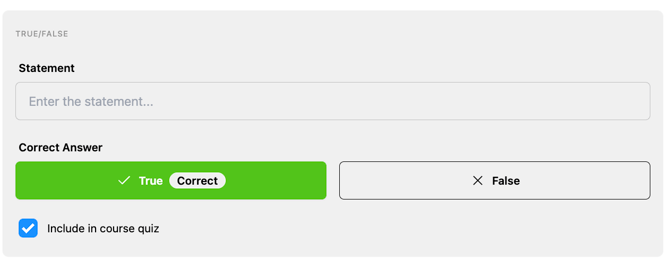
True/False Statement
Presents a statement and asks the learner to mark it as True or False. Works the same as Multiple Choice — up to 2 attempts, with the correct answer shown after 2 wrong answers.
- Include in course quiz — same as Multiple Choice; checking this makes it eligible for the final quiz
Tips
- You can add blocks in any order and reorder them by dragging at any time.
- Each block has options to duplicate, move up/down, or delete.
- Add a block above or below an existing block using the + Add buttons that appear between blocks.