
A qualification is a certification program for a role, such as Control Room Operator. It's made up of phases: training to complete, hands-on work to log, tasks to perform, and exams to pass. When you finish every phase and your review board approves, you earn a certificate.
Get started
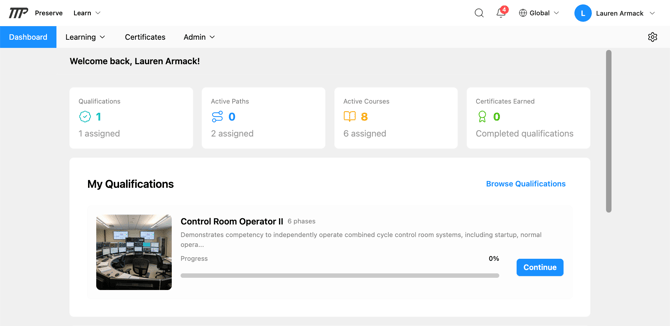
- Click Learning → Qualifications to see the qualifications available to you. Qualifications you're already in also appear under My Qualifications on your Dashboard.
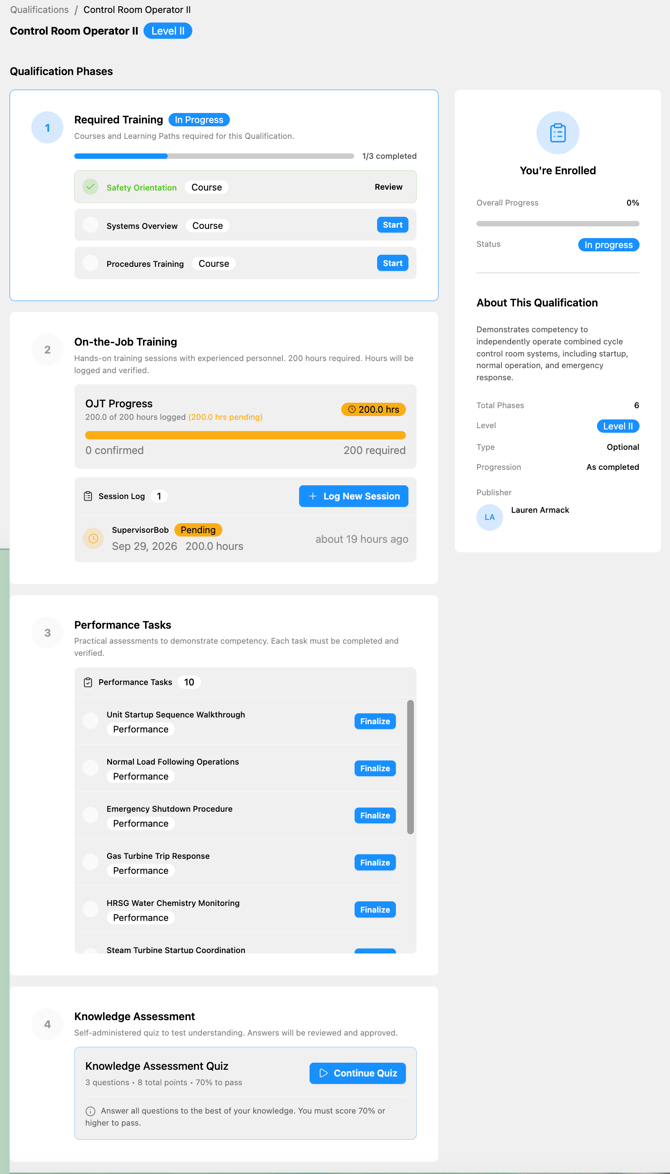
- Open a qualification. About This Qualification on the right shows the number of phases, the level, whether it's Optional or Mandatory, and whether phases must be done in order.
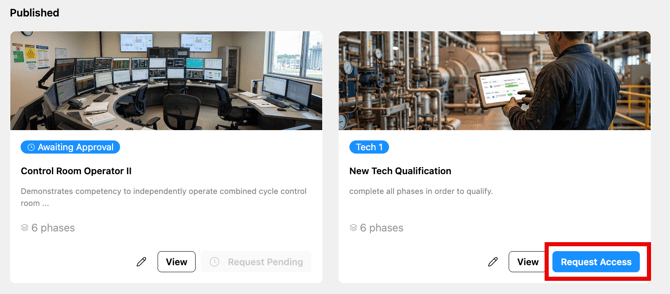
- Click Request Access. An admin approves your request, and you'll get a notification when you're enrolled. Some qualifications are assigned to you by an admin instead, and those appear on your Dashboard automatically.
Once you're enrolled, the right side of the page shows You're Enrolled with your overall progress and status.
💡 You only see qualifications available at the site you have selected. If you can't find one you expect, check the site selector at the top of the page, or ask your Learn Admin.
Work through the phases
Each phase is listed down the left side of the page. If the qualification's progression is Sequential, each phase unlocks when you finish the one before it. If it's As completed, you can work on phases in any order, but Final Review always comes last. Your qualification only includes the phases your admin set up, so you may not see all of these.
Required Training: Click Start next to each course or learning path. The phase shows how many you've completed (for example, "0/3 completed"). Anything you already finished counts right away.
On-the-Job Training: Each time you shadow an experienced person, click Log New Session (or Log Your First Session) and enter the date, how long it lasted, who you shadowed, and any notes. That person confirms the session. OJT Progress shows your confirmed hours against the hours required. Only confirmed sessions count. If a session is rejected, log a new one.
Performance Tasks: Perform each task in the list, then click Finalize next to it to submit it. If the task requires a file (for example, a photo), attach it when you submit. A reviewer approves or rejects it. If it's rejected, check their notes and submit it again.
Knowledge Assessment: The phase shows how many questions there are and the score you need to pass. Click to start the quiz (the button changes to Continue Quiz if you've already begun). If there's a time limit, the timer starts when you begin. After you submit, a reviewer grades your answers and approves or rejects the attempt. If it's rejected, you can try again.
Oral Board Examination: Once your earlier phases are done, click Request Oral Board Review. The button stays greyed out until then. A proctor asks you the questions in person and scores each answer. Your pass or fail result is calculated automatically, and you'll get a notification when the exam starts and when it's complete.
Final Review: This phase shows how many of the other phases you've finished (for example, "0/5 phases complete"). Once they're all done, click Submit for Review. Your review board looks over your full record and approves or rejects it.
💡 Your overall progress counts finished phases only, so it moves in steps as each phase is completed.
💡 Notifications aren't sent for every step. Check your qualification page to see what's been confirmed, approved, or is still waiting.
After final review
If it's approved: your qualification is complete, and your certificate is issued automatically. Find it under Certificates in the Learn navigation, where you can download it as a PDF.
If it's rejected: the qualification returns to you so you can redo what's needed and resubmit.
If a required course lapses later: some training has to be renewed on a schedule. If a required course lapses, your qualification shows Certification Suspended and your certificate can't be downloaded. Re-complete the course and everything is restored automatically.
Leaving a qualification
To leave a qualification you're enrolled in, click Unenroll in the panel on the right. Your progress is kept, so if you re-enroll later, you'll pick up where you left off.