
Daily Rounds in Preserve are designed to be fast — under 15 seconds per item — while capturing far more than a paper form ever could. This guide walks you through starting a round, logging your items, and submitting when you're done.
Step 1: Find your round on the schedule
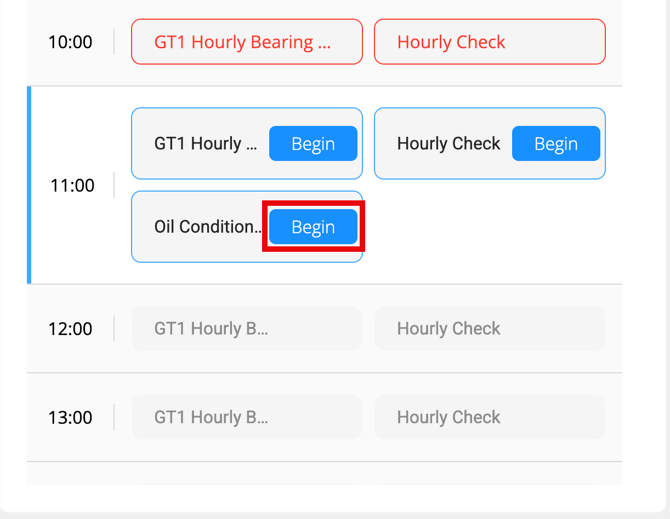
Use the Home screen to look at the Rounds chart. If you have an assignment set (top right menu), you will only see Rounds that are relevant to your assignment.
Click Begin next to a Round to start it. Alternatively, you can use the View All button > Click View next to the Round > Start button.
Step 2: Work through the round items
The round will walk you through each item from top to bottom. Depending on how the round was built, you'll encounter a few different types of items:
Status items — Select the current status from the available options (e.g., On / Off, Normal / Abnormal). Tap or click your selection, then click Log Item to record it. The item will turn green when logged.
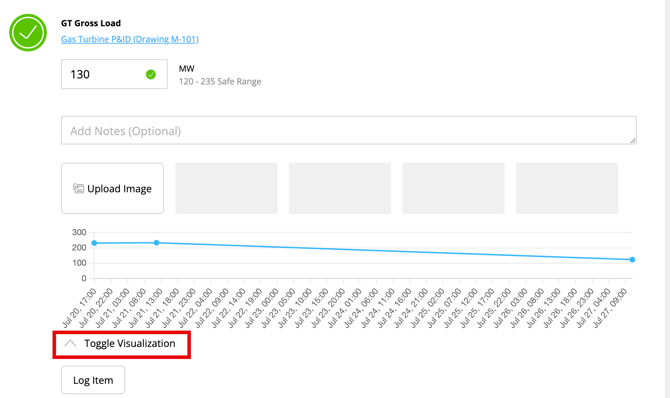
Value items — Enter the reading from the instrument or gauge. If your value falls outside the configured safe range, you'll see a red indicator letting you know the value is out of range. Log it anyway — the system will handle the alert automatically.
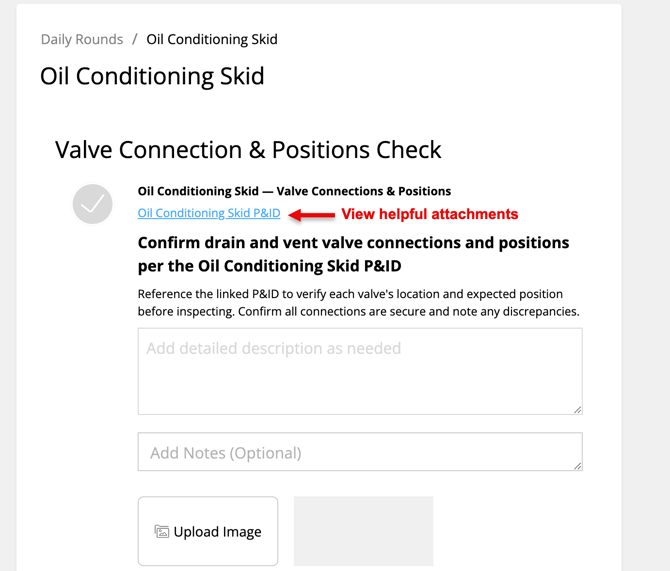
Linked documents - Click to view any linked resources
Open-answer items — Type in your observation or note in the text field, then log the item.
💡 On the mobile app, logging is automatic — you don't need to tap Log Item after each entry. On the web, make sure to click Log Item before moving on so the value is saved.
Step 3: Add notes or photos to an item
For any item, you can add a note or attach a photo before logging.
- Notes — Type directly in the notes field on that item. Use this for observations, concerns, or anything worth flagging for the next shift.
- Photos — On the mobile app, tap the camera icon to take a photo directly from your device and attach it to the item. This is especially useful when logging an out-of-range value or a visible issue in the field.
Step 4: Check past values while in the field
Each item shows a built-in visualization of its last 10 hours of logged values (see "What's on a Round Item" above) — use the collapse/expand toggle to check it before logging, so you can quickly spot whether something is trending higher, lower, or behaving unexpectedly without leaving the round.
If there's already an open report on an item, you'll see a notice on that item. You can tap through to view the report details, then return to continue your round.
Step 5: Navigate sections on large rounds
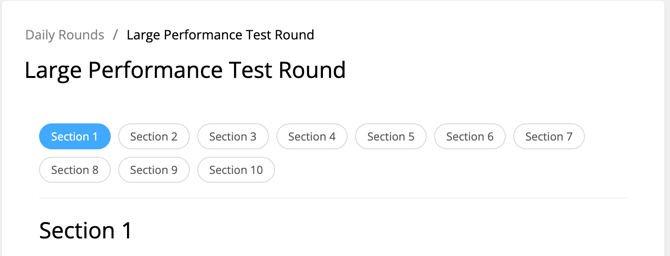
If you're completing a long round with many items, Preserve loads it one section at a time rather than all at once. The round looks and works exactly the same as a shorter round — you'll just see Previous Section and Next Section links at the bottom of each section to move through it.
💡 Treat each item the same way you would in any round — click Log Item after each entry before moving to the next section to make sure your values are recorded.
This section-by-section view only applies to rounds with more than 100 items. Shorter rounds load all at once and are unchanged.
Step 6: Save a draft or submit
When you've worked through all the items, you have two options:
- Save as Draft: If you need to step away and come back, save your progress as a draft. You have up to 24 hours to return and finish a saved draft. After 24 hours, the draft can no longer be submitted.
- Submit Round: When everything is logged, click Submit Round. If any values were out of range, your designated alert contacts will be notified automatically.
💡 You can also submit a partial round if needed, not every item has to be logged before submitting.
Correcting/Editing a Completed Round Log
Made a mistake on a note or narration answer after submitting? You can edit a completed log for up to 24 hours after it was submitted.
- From the navigation, go to Rounds and open the round you completed
- Click the Logs tab
- Click View next to the log you want to correct
- On the log detail page, click Edit
In edit mode, recorded values and multiple-choice selections are greyed out with a note that they are kept as logged and cannot be changed, since alerts and trends are already based on them. You can update:
- Notes on any item you recorded
- Narration (open-text) answers you entered
- Photos on items you recorded
- The overall Additional Notes field at the bottom of the log
Click Save Changes when done, or Cancel to discard.
💡 The Edit button only appears within 24 hours of submission, and only for someone who recorded at least one item on that log. Items recorded by other technicians on the same log are locked.
Using Preserve offline
If you're in an area without connectivity, you can complete rounds offline using the mobile app. Your round must be downloaded to your device before going offline. Once you're back in range, the app will sync your logged data back to the platform.
💡 Adding photos after submitting (mobile app): If you're uploading photos from the mobile app after a round is submitted, you have up to 30 days to attach photos to a completed log. This is separate from the 24-hour window for editing notes and answers on the web, which is unchanged.
Related Articles