
Once you're enrolled in a course, here's how to work through it.
Step 1: Open the course
From your Dashboard, click Continue on a course under My Active Courses, or navigate to Learning → Courses and find the course you're enrolled in.
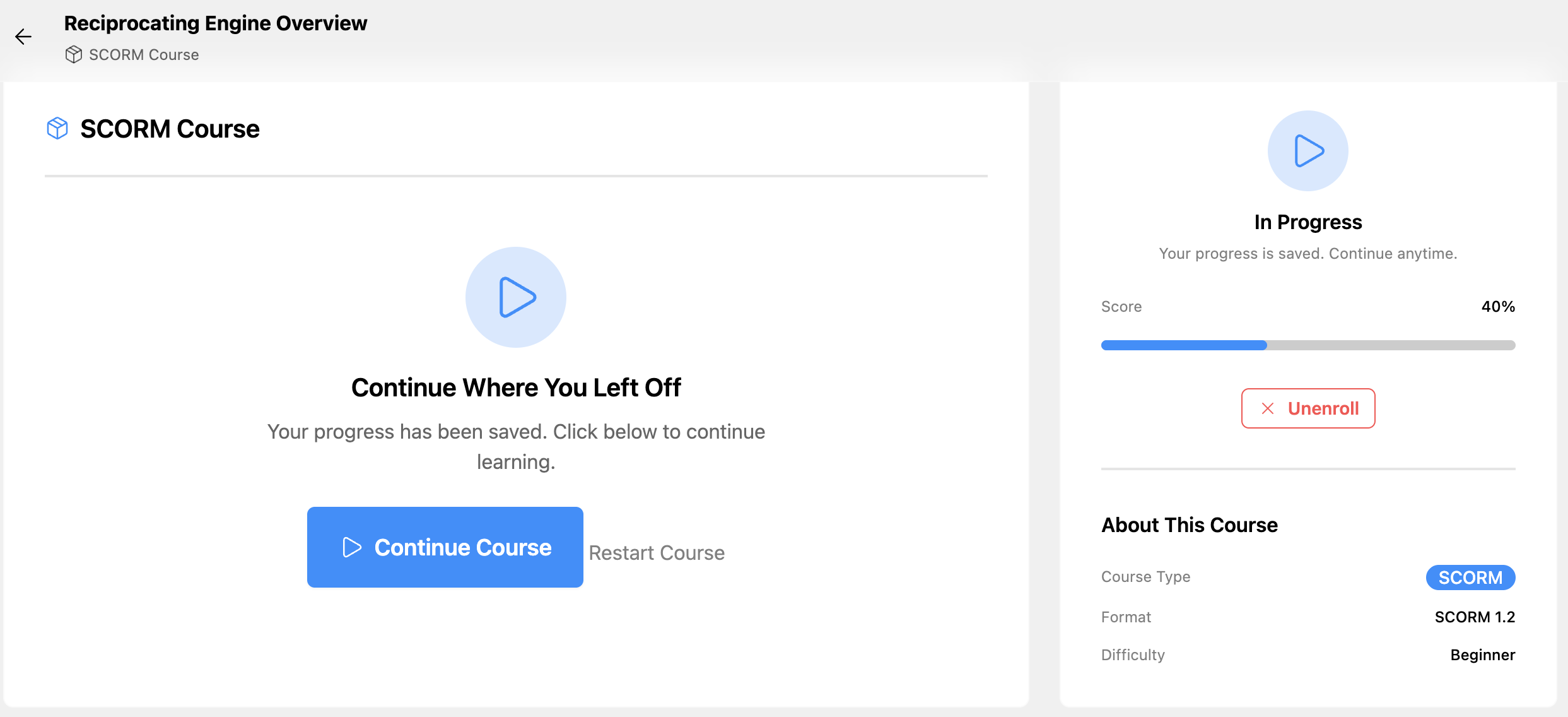
Step 2: Work through modules in order
Courses are structured as a sequence of modules (lessons). Modules are locked in order — you must complete Module 1 before Module 2 unlocks, and so on. This ensures you don't skip ahead in training that builds on itself.
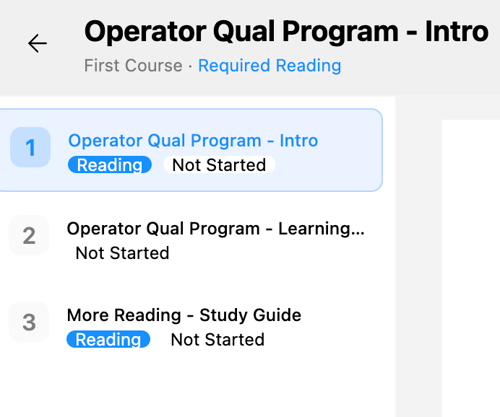
Each module can contain a mix of:
- Text and explanatory content
- Images and videos
- Multiple Choice questions — you get up to 2 attempts per question. After 2 wrong answers, the correct answer is shown and you can continue.
- True/False statements — same 2-attempt rule applies
You need to score at least 80% on a module's questions to complete it and unlock the next one.
At the bottom of each module, a progress indicator shows how many modules you've completed out of the total. Use the Previous Module and Next Module buttons to navigate.
Make sure you use the "Next Module" button on the bottom right to proceed. This marks your progress in the module as complete.
Step 3: Complete Required Reading (if applicable)
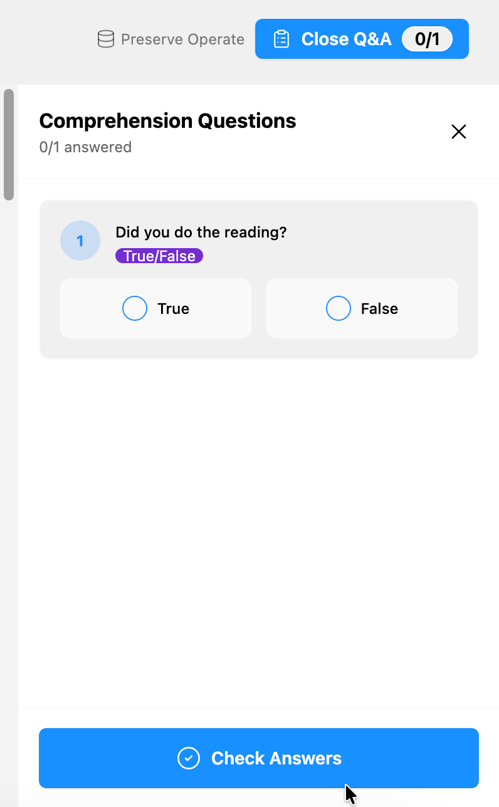
If a module is a Required Reading module, you'll read a document pulled directly from Preserve Operate. After reading, click the Open Q&A button at the top of the page — a slide-out panel appears with comprehension questions. Answer all of them and click Check Answers.
You must answer all comprehension questions correctly before you can proceed to the next module.
Step 4: Finish the course
When you complete the last module, the course is marked complete. The course detail page shows Course Completed! with progress at 100%, and each module listing has a Review button so you can jump back to any section.
Your Dashboard updates to reflect the completed course, and if it was part of a learning path, the path's progress percentage updates too.
If a new module is added after you've finished
If an admin adds a module to a course after you've already completed it, your status stays at 100% completed — you won't be knocked back to "in progress." You can voluntarily re-enroll in the new version if you want to take the new content.
💡 If you're an admin enrolled in a course, you'll see an Edit pencil on each module — this takes you directly into edit mode so you can make changes without leaving the learner view.