
Sites represent the physical locations in your organization — individual power plants, facilities, or campuses. Each site has its own documents, procedures, rounds, and users. Here's how to add one.
This feature requires a Platform Admin role. If you don't see the Settings option in your account menu (when you click your name on the top right), contact your Platform Admin.
Step 1: Open Settings
Click your name in the top right, then click Settings.
Step 2: Go to Site Management
Click the Site tab from the Settings menu. You'll see all existing sites in your organization. Click Add New Site.
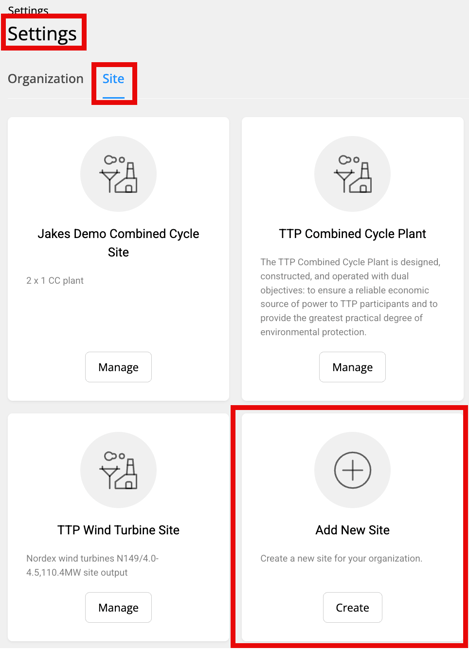
If Add New Site is not available, your organization has reached its site limit. Contact TTP to increase the number of sites available to your account.
Step 3: Fill in the site details
All fields are required:
| Field | What to enter |
|---|---|
| Site Name | The site's name as it will appear throughout Preserve (for example, "Cedar Creek Power Plant") |
| Description | A brief description of the site, up to 250 characters |
| Category | The type of facility (for example, Power Plant, Refinery, Wind Farm, Substation) |
| Address | Street address |
| City | City |
| State | State or province |
| Country | Country |
| Phone | Site contact number |
| Map Tile | Select the site's location on the interactive map. This automatically sets the site's timezone. |
The Time Zone is set automatically based on your Map Tile selection and drives how scheduled round times display for users at this site.
Step 4: Create the site
Click Create. You'll be taken directly to the Site Management page for your new site.
Two things happen automatically when a new site is created:
- A root document folder is created and ready for uploads. No extra setup needed.
- The site appears in Operate Settings, where you can configure its dashboard, system codes, and document uploads.
Setting up Learn for the new site
A new site starts with nothing visible in Learn. Two things to do if people at this site will use Learn:
- Make training available at the site. An organization-level Learn Admin opens Learn Settings (the gear icon at the right end of the Learn navigation), goes to the Site tab, clicks Manage on the new site, and includes the courses, learning paths, and qualifications that site needs. Anything already set to All sites shows up there automatically.
- Give people a Learn role at the site (if needed). From Settings → the Site tab → your new site → Users, add or edit a user and choose a Learn Site Role. People with an organization-wide Learn role don't need one.
💡 Until training is made available at the site, anyone who only has a Learn role at this site will see an empty course catalog. The user form warns you about this.
Related Articles